
NotebookLM
How to use NotebookLM(2026): Upload sources, PDFs, videos, then auto-generate summaries, Q&A, quizzes. Free tier with Google account. Master study efficiently!
Usage Tips
How to Use NotebookLM for Efficient Review
Use specific questions like 'Explain this concept in simple terms with examples' or 'Compare views A and B'. Generate mind maps first, then ask targeted questions about weak areas. Combine Flashcards and Quiz features for learning and testing simultaneously.
How to Use Search to Add Sources
Instead of manually uploading, use NotebookLM's search feature. Enter specific keywords (e.g., 'Calculus Basics' instead of 'Math') to find more accurate materials. Browse recommendations before importing to avoid wasting source limits.
How to Use Studio Generation Features
Choose features based on learning stage: Study Guide for initial learning, Flashcards and Quiz for review. Audio and Video Overviews are great for offline learning during commutes. Mind Maps help organize complex concepts, Reports provide quick insights.
How to Prepare for Exams with NotebookLM
Upload all materials to one notebook, then generate Study Guide, Flashcards, and Quiz. Use chat for targeted questions. Create separate notebooks for different subjects. Regularly generate Quiz to identify knowledge gaps.
How to Use NotebookLM for Research Papers
Create a research topic notebook, upload papers and materials, use Explore to discover more sources. Generate Reports to extract key information, use citation features to ensure all viewpoints are supported. Generate Slide Deck based on Reports for presentations.
How to Use NotebookLM for New Courses
Create separate notebooks for each course. Upload course videos, notes, and materials. Create Timeline using report feature with prompts to understand course progress. Generate Mind Map after each chapter, create Flashcards and Quiz regularly. Review Mind Map periodically to consolidate knowledge structure.
How to Maximize Free Tier Usage
Free tier: ~50 conversations/day, 3 audio generations/day, 50 sources per notebook. Plan usage: use conversations for quick questions, save audio for important summaries. Group related materials in one notebook. Refresh browser or wait for next day reset.
How to Use Chat Feature Effectively
Ask specific questions for better answers (e.g., 'Explain the process of photosynthesis' vs 'Explain'). Ask follow-up questions based on previous answers. Use citation feature to verify key information by jumping to original content.
NotebookLM is Google’s AI note-taking tool designed to help students organize and understand study sources. You can upload lecture notes, PDFs, videos, and other file formats, and NotebookLM will automatically generate summaries, Q&A, quizzes, and flashcards based on your sources. You’ll need a Google account to get started, and the free tier is available right away.
How to Use NotebookLM: Quick Start Guide(2026)
1. Access and Login
Visit notebooklm.google.com and log in with your Google account. If you’re using a school account, you may need administrator approval first.
2. Create a New Notebook
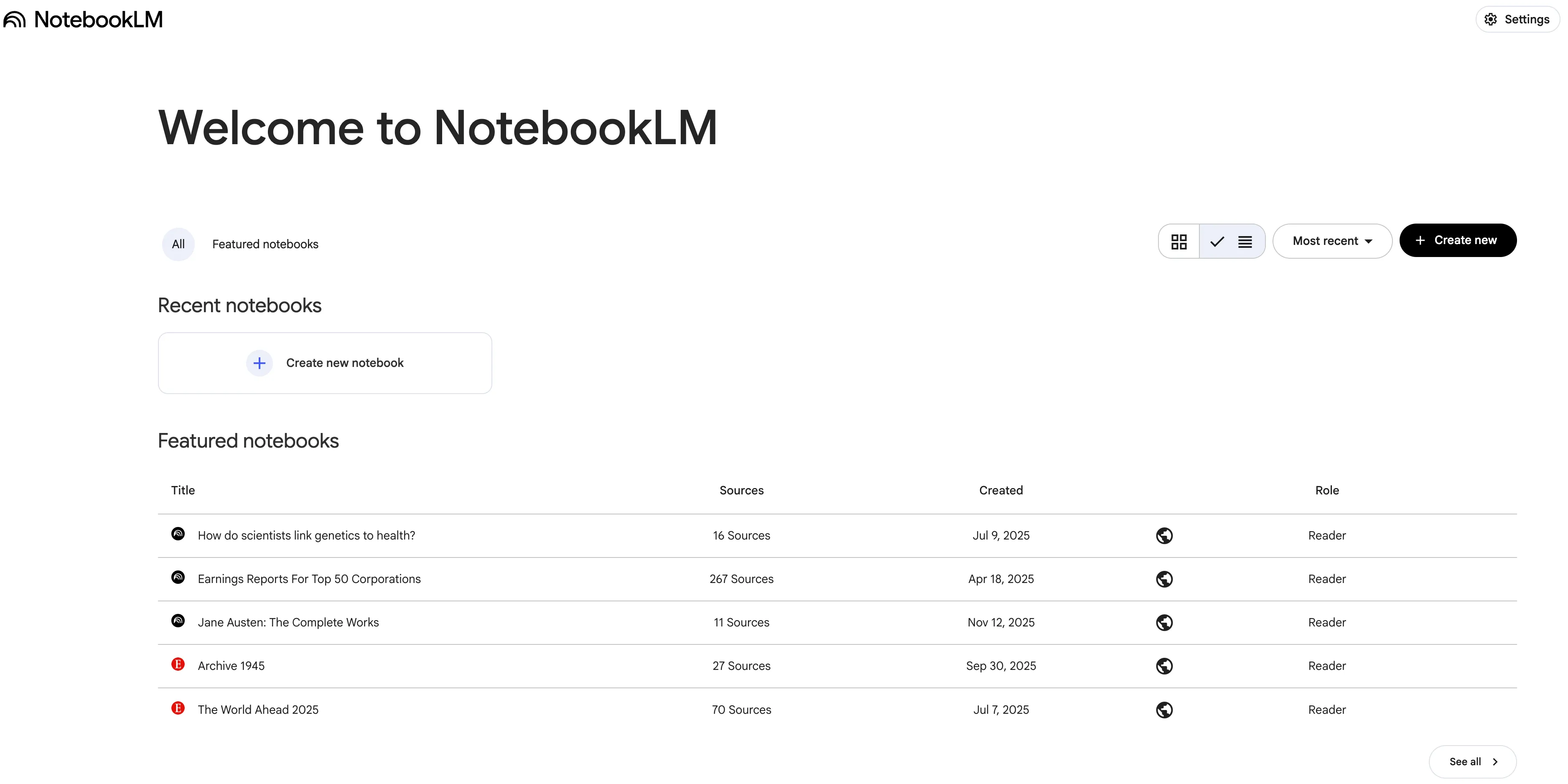
Click “Create new notebook” and enter a name (e.g., “Final Exam Review”) to create a new notebook.
3. Upload Sources
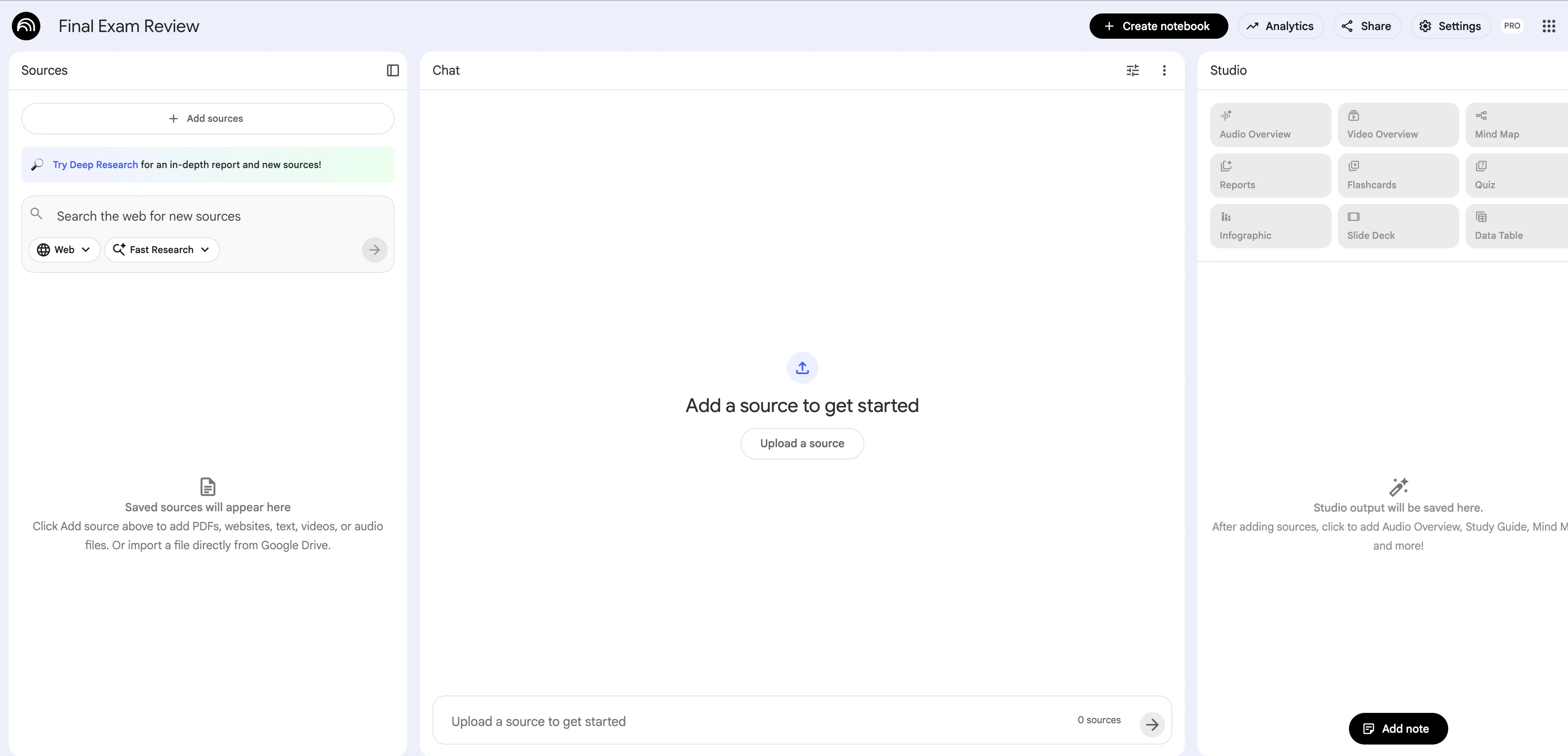
In the “Sources” section on the left, click “Add source” to upload the following file types:
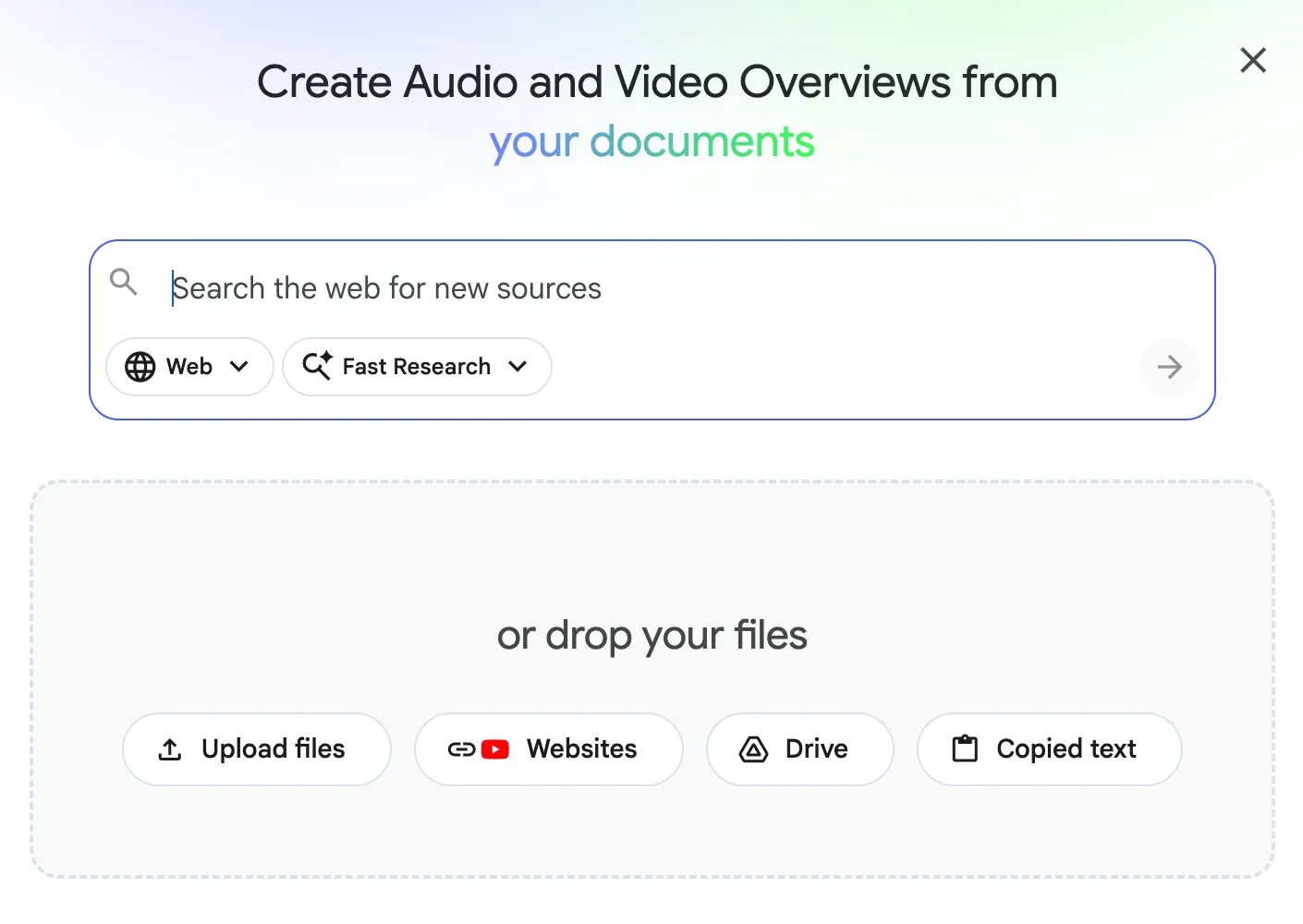
- PDF files: Upload local PDFs directly
- Google Docs/Presentations: Connect your Google Drive
- Website URLs: Enter web page links
- YouTube links: Paste video links
- Audio/Text files: Upload audio or text formats
Note: The free tier allows up to 50 sources per notebook. The screenshots shown here use the Pro version. If you want to get the educational discount and enjoy 12 months of free use, check out: Google AI Pro: Limited-Time Student Discount - Free for 1 Year.
4. Start Using
After uploading your sources, enter what you want to learn about in the chat box, or ask NotebookLM to help you understand difficult concepts.
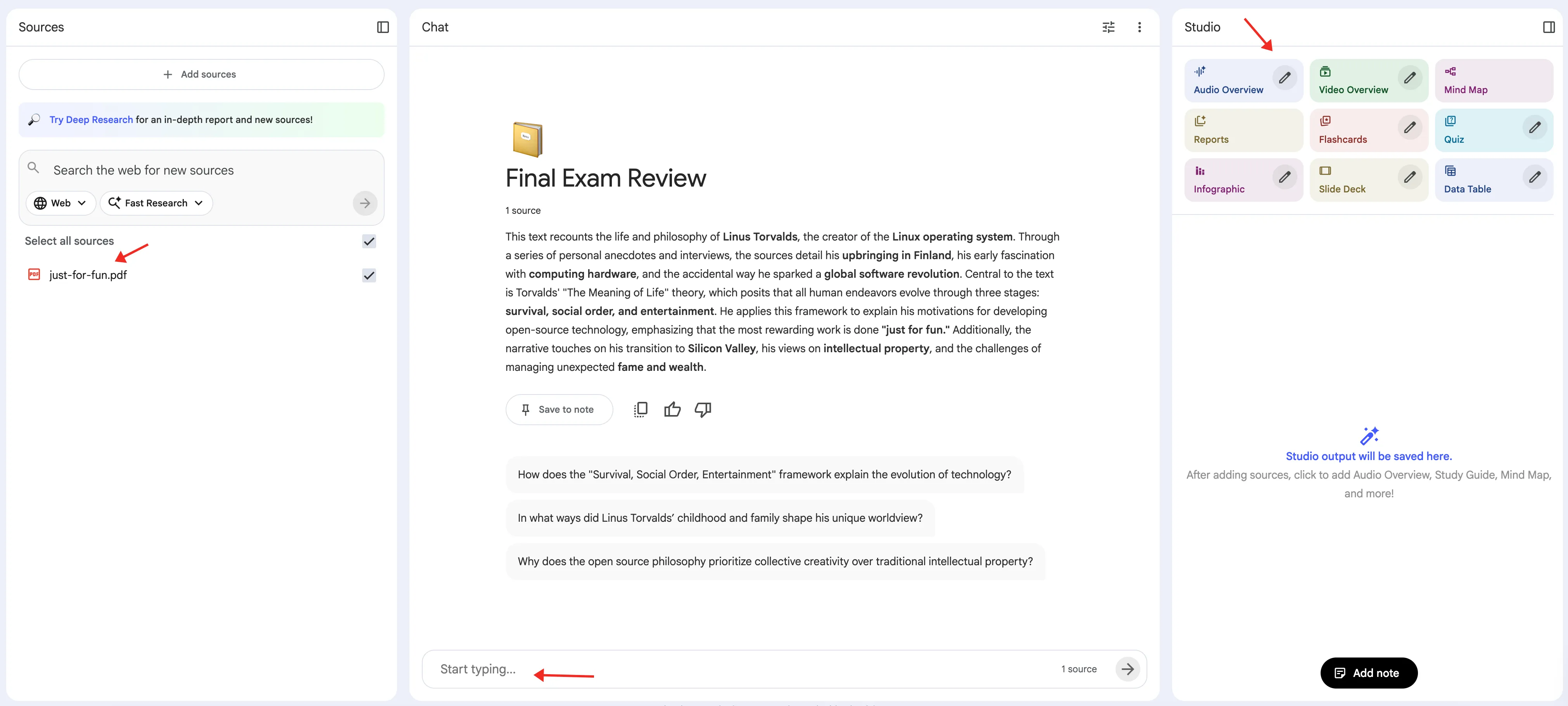
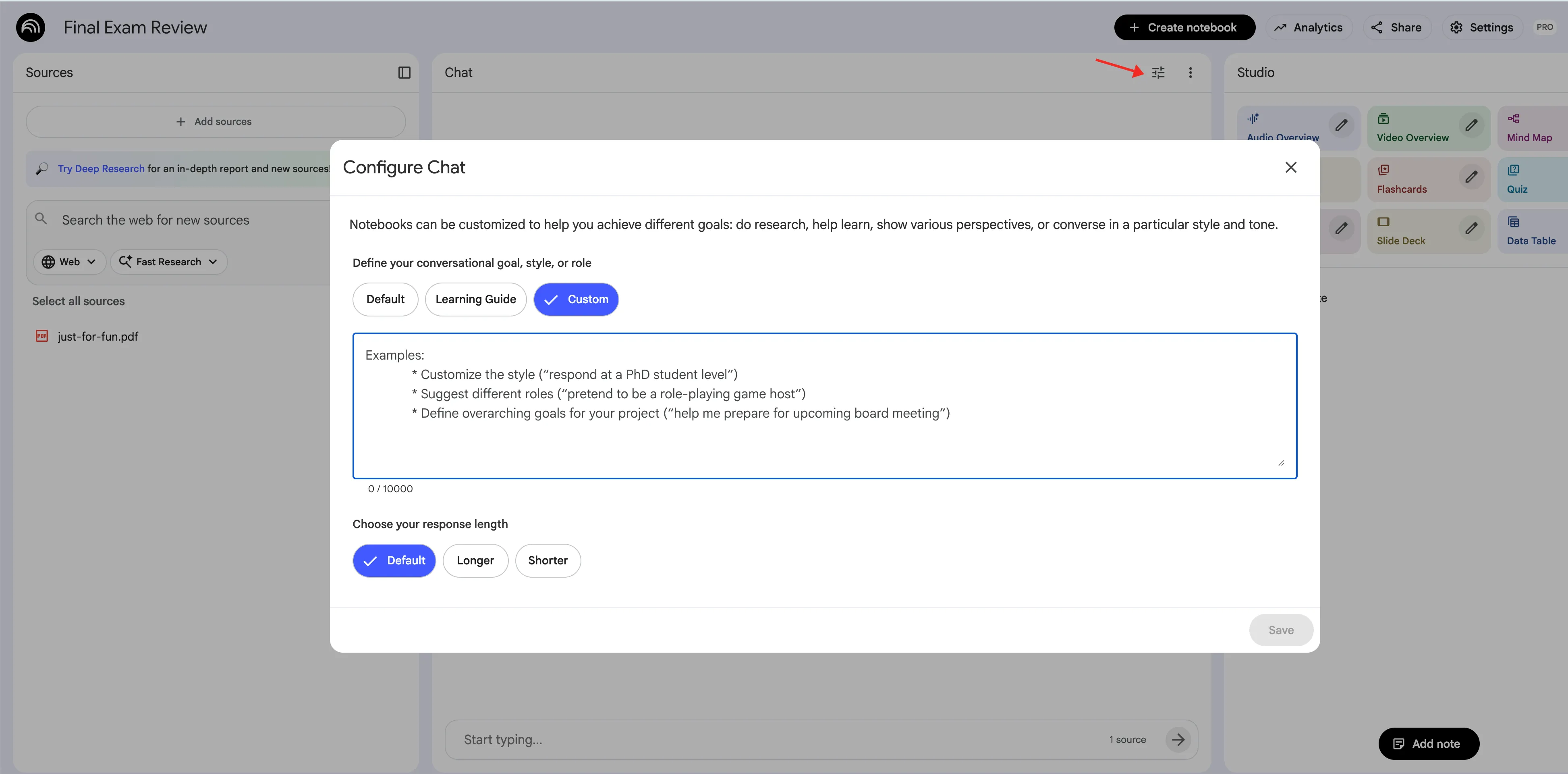
If you want to customize it to meet your needs and help you achieve different goals, click the button in the top-right corner of the chat to customize it.
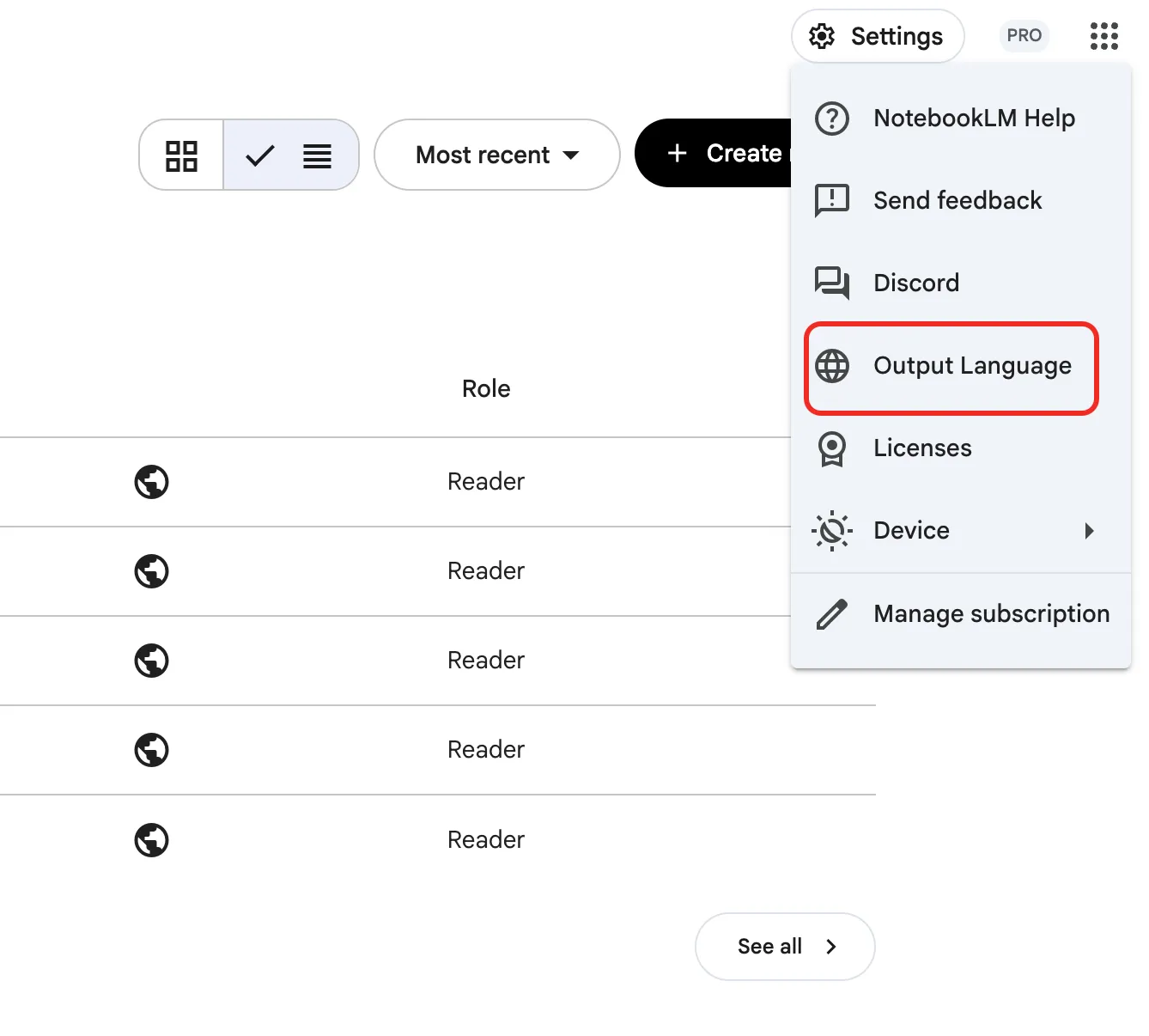
Reminder: If the language of NotebookLM’s output isn’t what you want, you can select the output language in the settings at the top right corner.
NotebookLM Core Features: Usage Guide
How to Add Sources via Search
Besides manually uploading files, you can also ask NotebookLM to search and add relevant sources for you.
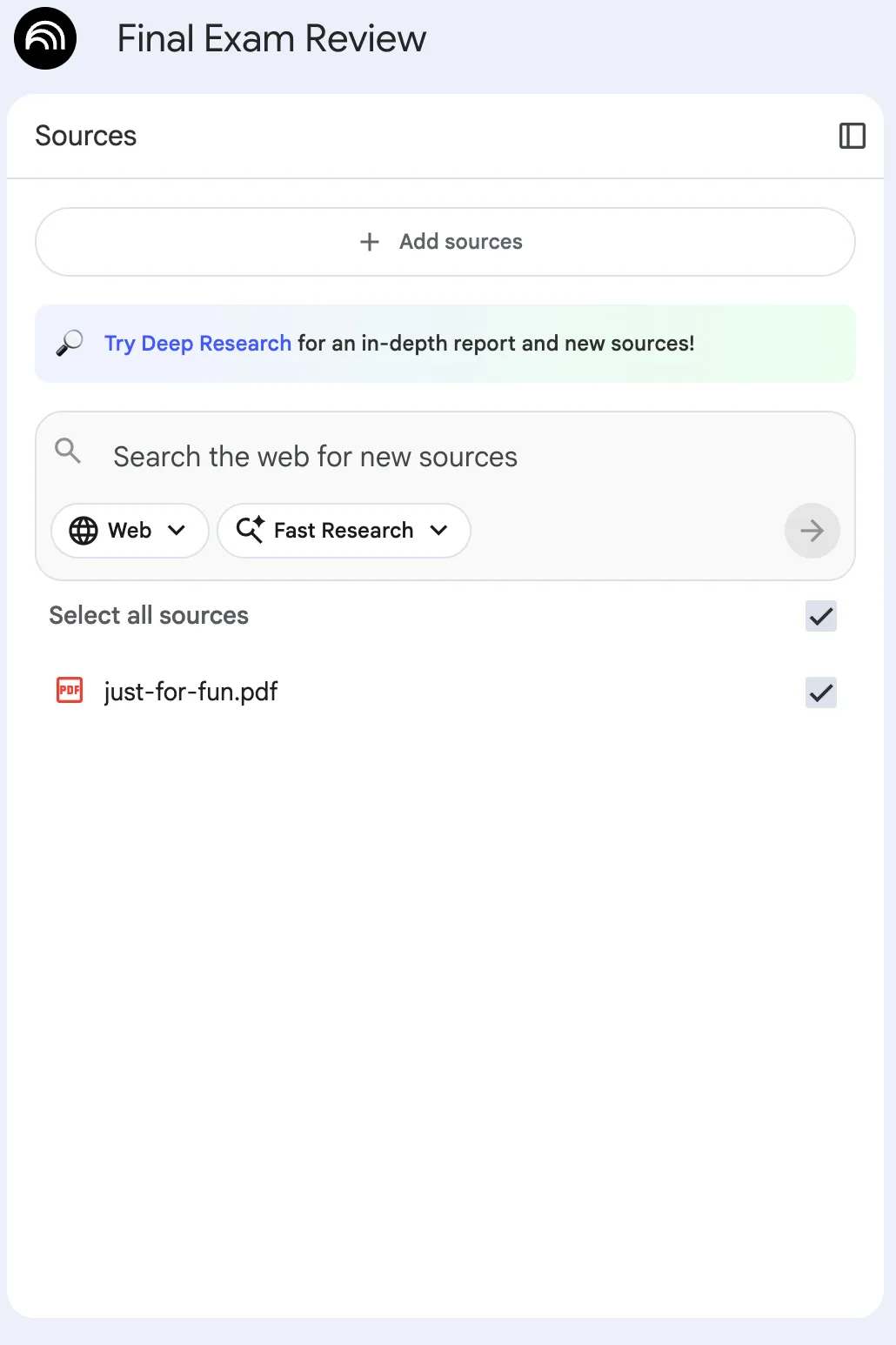
Enter the topic you want to research, and NotebookLM will search for relevant web pages, PDFs, or videos that you can selectively add to your notebook.
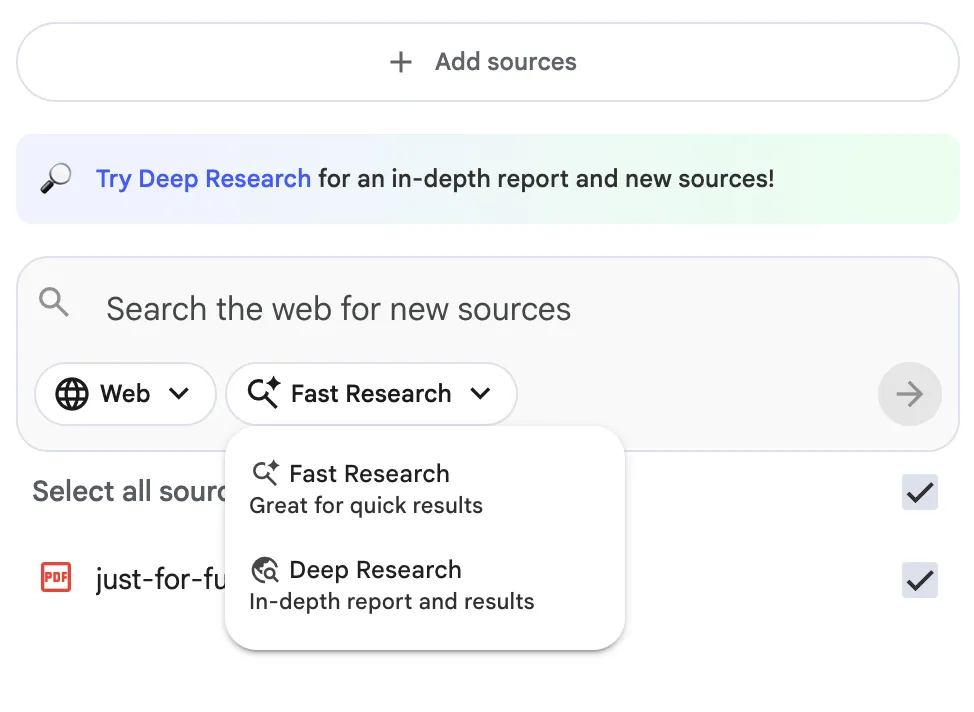
Usage Tip: Use specific keywords when searching, such as “Calculus Basics” instead of “Math,” to find more accurate sources.
How to Use Chat Q&A
Enter questions in the chat box in the middle, and NotebookLM will answer based on your uploaded sources.
Common Question Examples:
- “Summarize the key points of this chapter”
- “Create 10 quiz questions for me”
- “Explain this concept in simple terms with examples”
- “Compare views A and B”
Key Features:
- NotebookLM responds solely based on your uploaded sources and will not conduct automatic online searches unless you explicitly request additional web resources.
- Answers include source citations that you can click to jump to the original content
- All information is traceable and verifiable
Usage Tips:
- The more specific your question, the more accurate the answer. For example, “Explain the process of photosynthesis” is better than “Explain this”
- You can ask follow-up questions to dive deeper based on previous answers
- Use the citation feature to return to the original content and verify key information
If you want more prompt tips, visit: AI Study Prompts Library for more AI learning prompt ideas.
How to Use Studio Generation Features
After uploading sources, the “Studio” section on the right will activate, allowing you to generate different types of study sources:
- Audio Overview: Converts document content into podcast-style conversations with two AI hosts discussing key points, perfect for listening during commutes or breaks
- Video Overview: Converts document summaries into visual slide-style videos with AI narration, images, and charts for a multimedia learning experience
- Study Guide: Generates comprehensive study guides that organize key points from your sources
- Mind Map: Automatically maps logical relationships between documents into mind maps to help you visually understand knowledge structures
- Reports: Generates detailed reports from uploaded documents, extracting key information for quick insights
- Flashcards: Extracts important concepts from documents to create memory cards for review
- Quiz: Creates quiz questions based on document content to help you self-assess your understanding
- Infographic: Visualizes data and information from documents into infographics for intuitive presentation
- Slide Deck: Generates presentation slides based on document content, suitable for reports and presentations
- Data Table: Extracts data from documents to create structured tables for analysis and comparison
Usage Tips:
- Choose different features based on your learning stage: Study Guide for initial learning, Flashcards and Quiz for review
- Audio and Video Overviews are great for learning during spare time and can be downloaded for offline use
- Mind Maps are perfect for organizing complex concepts, while Reports are ideal for quickly getting key points
How to Add Notes
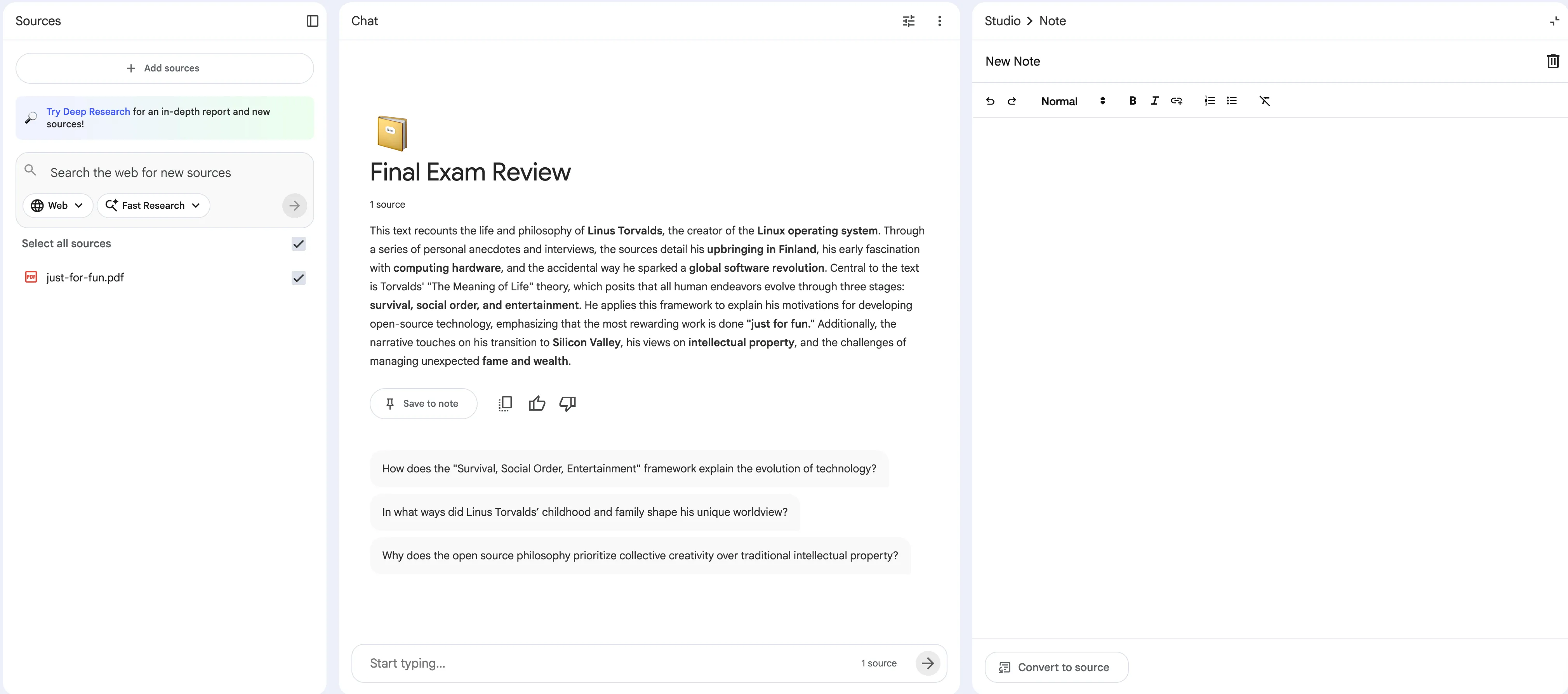
Click the “add note” button on the right to add study notes for the current source. These notes will be saved in your notebook for easy access and editing.
Usage Tip: Add notes promptly while reading sources to record your understanding and questions, then use the chat feature to ask targeted questions later.
NotebookLM Usage Tips and Practical Scenarios
Tip 1: Efficient Material Review
After uploading lecture notes, use these questioning techniques:
Prompt Examples:
- “Explain this concept in simple terms with examples” — great for understanding complex concepts
- “Compare views A and B” — perfect for comparative analysis
- “What are the key points of this chapter?” — quick way to identify main points
- “Help me organize the knowledge points for this topic” — systematic learning
Advanced Tips:
- First generate a mind map with NotebookLM, then ask targeted questions about weak areas
- Combine Flashcards and Quiz features for learning and testing simultaneously
- Regularly generate Audio Overviews to review during spare time
Tip 2: Exploring New Sources
Click “Explore” in the “Sources” section and enter a topic (e.g., “Calculus Basics”). NotebookLM will:
- Recommend relevant web pages, PDFs, or videos
- Allow you to selectively import recommended sources (free tier has import limits)
- Help you expand your research scope
Usage Tips:
- The Explore feature is great for researching new areas and quickly finding relevant sources
- We recommend browsing recommended content first before deciding whether to import, to avoid wasting source limits
- After importing, remember to check the auto-generated guide to quickly understand new sources
Tip 3: Complete Exam Preparation Workflow
Practical Steps:
- Organize Review Sources: Upload all relevant lecture notes, PDFs, and videos to one notebook
- Generate Study Materials: Use Studio features to generate Study Guide, Flashcards, and Quiz
- Practice Q&A: Ask questions through the chat feature to test your understanding
- Audio Review: Generate Audio Overview to listen during commutes or breaks
- Fill Knowledge Gaps: Continue asking questions and generating related materials for weak areas
Prompt Example:
I need to prepare for an exam on [topic], please:
1. Generate a study guide covering all important concepts
2. Create 20 quiz questions covering different difficulty levels
3. Generate a mind map to help me understand the knowledge structure
4. Provide targeted review suggestions for weak areas
Advanced Tips:
- Create separate notebooks for different subjects for better organization
- Regularly generate Quizzes for self-assessment to identify knowledge gaps
- Use Mind Maps to organize knowledge frameworks and build systematic understanding
Tip 4: Research Paper Preparation
Practical Steps:
- Create a research topic notebook
- Upload relevant papers, sources, and web links
- Use the Explore feature to discover more relevant sources
- Generate Reports to organize core viewpoints
- Use the Q&A feature to deeply understand sources
- Generate Slide Deck for presentations
Prompt Example:
I need to prepare a research paper on [topic], please:
1. Analyze all the papers I uploaded and extract core viewpoints
2. Compare the methods and conclusions of different studies
3. Generate a literature review outline
4. Identify research trends and future directions
5. Create a presentation outline based on these materials
Usage Tips:
- The Reports feature is particularly useful for paper preparation, as it can quickly extract key information
- Use citation features to ensure all viewpoints are supported by sources
- When generating Slide Decks, you can further optimize based on Reports
Tip 5: New Course Learning
Practical Steps:
- Create separate notebooks for each course
- Upload course videos, lecture notes, and supplementary sources
- If sources contain time information, create a Timeline using the report feature to understand course progress (prompt: “Create a chronological timeline of course progress”)
- Generate Mind Maps to organize knowledge structures
- Regularly generate Audio Overviews for review
- Use Quiz features to test learning effectiveness
Prompt Example:
I'm learning [Course Name], please:
1. Create a chronological timeline of course progress
2. Generate a mind map for each chapter
3. After completing each chapter, generate corresponding flashcards and quizzes
4. Regularly generate audio overviews for review
Usage Tips:
- Timeline features are particularly useful during course learning, helping you understand course progress and key time points. Although the dedicated button was removed, you can still create timelines using the report feature
- After completing each chapter, generate corresponding Flashcards and Quizzes
- Regularly review Mind Maps to consolidate knowledge structures
Tip 6: How to Handle Free Tier Limits
Usage Limits:
- Conversations: Approximately 50 conversations per day
- Audio Generations: 3 audio generations per day
- Source Count: Up to 50 sources per notebook
Coping Strategies:
-
Plan Usage Wisely:
- Use conversations for quick questions; you can combine important questions
- Save audio generations for important summary content; prioritize what you need most
- Group related sources in one notebook to avoid spreading them out
-
Reset Limits:
- Refresh your browser (sometimes this resets limits)
- Wait for automatic reset the next day
-
Consider Upgrading:
- If you use it frequently, consider upgrading to Plus, Pro, or Ultra versions
- Paid versions offer higher usage limits and more features
Tip 7: Privacy Protection Usage Tips
- Only Uses Your Sources: NotebookLM responds solely based on the materials you upload and does not arbitrarily search online for additional information unless you actively ask a question
- Data Security: Your sources are only used to generate answers, ensuring privacy
- Citation Tracking: All answers include source citations for easy verification and traceability
Usage Tip: When uploading sensitive sources, you can create private notebooks to ensure data security.
NotebookLM Subscription Plans Selection Guide
NotebookLM offers multiple subscription plans, and students can get Google AI Pro FREE for one year, which includes enhanced NotebookLM features. Understanding the differences helps you choose the plan that best fits your learning needs.
🎓 Free for Students - Google AI Pro (One Year)
Price: FREE for college students for one year (normally $19.99/month)
How to Get: See detailed application guide → Google AI Pro: Limited-Time Student Discount - Free for 1 Year
NotebookLM-Related Features:
- 5x Audio Overviews and Notebooks: 5 times more audio generations and notebooks than the free tier
- More Sources: Each notebook can have more sources
- Higher Conversation Limits: More conversations per day
- All Google AI Pro Features: Including Gemini 3 Pro access, Deep Research, image generation, and more
Suitable for: Students who need to use NotebookLM extensively for learning
Free Tier
Price: Free
Features:
- Up to 50 sources per notebook
- Approximately 50 conversations per day
- 3 audio generations per day
- Basic Studio generation features
Suitable for: Students trying NotebookLM for the first time, everyday use
Plus/Pro/Ultra Versions
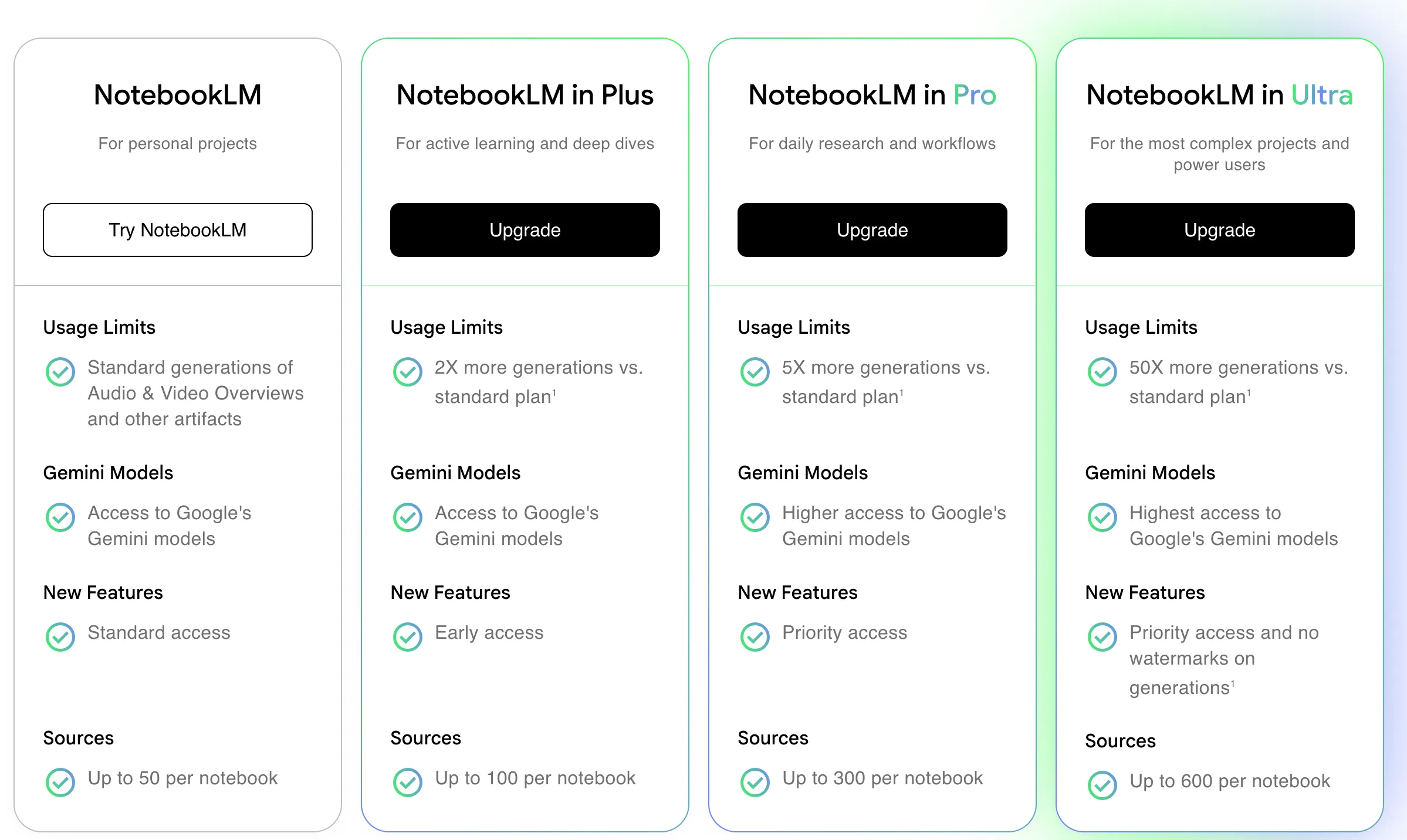
Price: Based on Google AI Pro/Ultra subscription plans
NotebookLM-Related Features:
- Higher usage limits than the free tier
- More Audio Overviews and notebooks
- More sources and conversations
- Priority access to new features
Suitable for: Students who need to use NotebookLM extensively for in-depth research
Feature Comparison Table
| Feature | Free Tier | Google AI Pro (Free for Students One Year) |
|---|---|---|
| Sources per Notebook | 50 | More |
| Daily Conversations | ~50 | More |
| Daily Audio Generations | 3 | 5x (15) |
| Notebook Count | Limited | 5x |
| Studio Generation | ✅ | ✅ Enhanced |
| Explore Feature | ✅ | ✅ Enhanced |
| Citation Tracking | ✅ | ✅ |
Selection Recommendations:
-
🎓 Student Free (Google AI Pro): Best option for college students! Get Google AI Pro FREE for one year, including 5x Audio Overviews and notebooks for NotebookLM. Perfect for students who need to use NotebookLM extensively for learning.
-
Free Tier: Suitable for students trying NotebookLM for the first time or with low usage frequency, provides basic features.
-
Plus/Pro/Ultra: If you don’t qualify for the student discount or need more features after your free year, consider upgrading.
Important Notes
⚠️ Academic Integrity
- Use as a Learning Tool: NotebookLM is a learning assistance tool and should not be used to directly submit AI-generated content
- Understand Content: Make sure you understand the generated content rather than copying it directly
- Check School Policies: Understand your school’s policies on AI tool usage
⚠️ Information Accuracy
- Verify Key Information: Although NotebookLM answers based on your sources, you should still verify important information
- Cross-Check: For key concepts, we recommend consulting original sources to confirm
- Use Citations: Utilize citation features to return to original sources and confirm information
⚠️ Responsible Use
- Plan Usage: Be aware of free tier limits and plan daily usage accordingly
- Organize Sources: Group related sources together for better efficiency
- Regular Review: Use generated study sources for regular review
Summary
NotebookLM is a practical learning assistance tool, especially suitable for students who need to organize large amounts of study sources. By mastering these NotebookLM usage tips, you can:
- Quickly generate various study sources (flashcards, quizzes, mind maps, etc.)
- Deepen understanding through Q&A
- Use audio and video overviews for multi-sensory learning
- Organize and visualize complex information
💡 Usage Advice: Make full use of the free tier features and plan usage limits wisely. Use NotebookLM as a learning assistance tool, not as a replacement for thinking. By combining various generation features, you can comprehensively improve learning efficiency. Remember, the key to mastering how to use NotebookLM is to practice more, experiment more, and find the learning approach that works best for you.
🎓 Student Special Offer: If you’re a college student, you can get Google AI Pro FREE for one year, including 5x Audio Overviews and notebooks for NotebookLM. Visit gemini.google/subscriptions and verify your student status to get started.
Use Cases
- Final exam preparation: organize materials, generate study guides, flashcards, and quizzes
- Research paper preparation: compile sources, generate reports and slide decks
- New course learning: create course notebooks, generate mind maps and timelines
- Efficient material review: use AI chat for targeted questions and understanding
- Multi-sensory learning: generate audio and video overviews for offline review
- Knowledge organization: visualize complex concepts with mind maps and infographics
Key Features
- Upload multiple source types (PDF, Google Docs, YouTube, audio, text)
- Generate study materials via Studio: Audio/Video Overview, Study Guide, Mind Map, Reports, Flashcards, Quiz, Infographic, Slide Deck, Data Table
- Search and add sources via web search
- AI chat based on your sources with citations
- Add notes to sources for personal annotations
- Explore feature to discover and import relevant materials
- Privacy-focused: only uses your uploaded sources
Pros
- Free tier available
- Privacy-focused (only uses your sources)
- Multiple content generation formats
- Easy source organization
- Citation tracking for verification
- Supports various file types
Cons
- Free tier has daily limits
- Requires Google account
- School accounts may need admin approval
- Limited sources per notebook in free tier
Frequently Asked Questions
Is NotebookLM free to use?
Yes, NotebookLM offers a free tier that allows you to get started immediately. Free tier includes up to 50 sources per notebook, approximately 50 conversations per day, and 3 audio generations per day. There are also Plus, Pro, and Ultra plans available with enhanced features and higher limits. College students can get Google AI Pro FREE for one year, which includes 5x Audio Overviews and notebooks for NotebookLM.
What types of sources can I upload?
You can upload PDFs, Google Docs/Presentations, website URLs, YouTube links, audio files, and text documents. NotebookLM supports a wide variety of formats to help you organize all your study materials.
How does NotebookLM search the web for content?
In the left sidebar, find the Sources search box, select Web Search, and enter keywords. NotebookLM will automatically search the web and add relevant sources.
Do I need a Google account?
Yes, you need a Google account to use NotebookLM. If you're using a school account, you may need administrator approval to access the service.
How does NotebookLM protect my privacy?
NotebookLM only uses the sources you upload. It doesn't search the web or access external information, ensuring your materials remain private and the AI responses are based solely on your content.
What happens when I reach the daily limit?
When you reach the daily conversation or audio generation limit, you can refresh your browser or wait until the next day for the limits to reset. Consider upgrading to a paid plan or applying for the student free version (Google AI Pro) for higher limits.
Can I use NotebookLM for exam preparation?
Absolutely! NotebookLM is perfect for exam prep. Upload your lecture notes, textbooks, and study materials, then generate study guides, flashcards, and practice quizzes. The AI chat feature helps you review concepts and answer questions based on your materials.
How do I use NotebookLM effectively?
Start by uploading your sources, then use specific questions in the chat for better answers. Generate different content types based on your learning stage: Study Guide for initial learning, Flashcards and Quiz for review. Use Audio and Video Overviews for offline learning.
What are the best NotebookLM usage tips?
Key tips: Use specific keywords when searching for sources; ask targeted questions for better answers; generate mind maps first to identify weak areas; combine Flashcards and Quiz for active learning; create separate notebooks for different subjects; use citation features to verify information; plan your usage to maximize free tier limits.