
GPT Image 2 is OpenAI’s flagship image generation model released on April 21, 2026. It dominates the Image Arena blind-test leaderboard, especially in text-to-image, leading the second place by over 240 points. Its biggest breakthrough is near-90% accurate rendering of English, Chinese (simplified/traditional), and multilingual text, handling complex layouts, UI interfaces, and multi-language content with almost zero errors. It also supports native high-resolution output, extreme aspect ratios, precise local editing, and the powerful “Thinking” reasoning mode (planning, data referencing, and self-checking before generation).
You don’t need to pay to get started. This guide gives you real, actionable free access paths, quota checking methods, advanced prompt templates, and pitfall avoidance tips — plus the latest 2026 comparison with Grok Imagine and Gemini.
1. How to Use GPT Image 2 for Free (Tested & Working)
1) ChatGPT Official Website / App (Most Recommended, Zero Barrier)
- Go to chatgpt.com or open the official mobile app and log in with a free account.
- Free users already have access to GPT Image 2 Standard by default — just type your prompt.
- Daily Quota: Free accounts typically get 2–10 images per day (2–3 during peak hours, refreshes every 24 hours). ChatGPT Plus offers higher limits and unlocks full Thinking mode (pre-generation reasoning, web search, and 4–8 consistent variations).
- Quick Steps:
- Start a new chat and type “Generate with GPT Image 2” or paste your prompt directly.
- Upload a reference image + text instructions (e.g., “Change only the background to a night city view, keep everything else”).
2) Third-Party Free Platforms (Extra Quota)
- aifreeforever.com and similar sites: Offer GPT Image 2 free trials (check current login/usage rules on the page).
- familypro.io – Official API: Provides daily free credits in some time slots (around 8 images, subject to change).
- fal.ai, WaveSpeedAI, etc.: Usually have free trial credits or cheap API testing plans.
Pro Tip: When quota is tight, ask the model to refine your prompt first — it dramatically increases first-try success rate.
2. How to Quickly Verify It’s GPT Image 2
Test prompt:
“Create a realistic menu for a modern American diner, featuring 8 signature dishes with English prices, QR code, frosted glass card design, and soft warm lighting.”
GPT Image 2 hallmarks:
- Crystal-clear, error-free text
- Professional typography and layout
- Natural lighting and shadows
- Complex multi-element scenes without chaos
- Native 2K resolution, extreme ratios (9:16 mobile vertical or 3:1 banner), strong multi-image consistency
3. Core Strengths (Why It’s Worth Using)
- Text & Typography King: Best-in-class English and multilingual rendering — perfect for posters, menus, UI mockups, infographics, and product labels.
- Thinking Mode: The model plans composition, references real-world examples, and self-checks before generating — huge boost for complex scenes.
- Editing Power: Excellent multi-turn conversation editing and precise localized changes.
- Resolution & Ratios: Native high-res + any aspect ratio — ready for mobile, banners, print, or social media.
4. Advanced Prompt Engineering Guide
GPT Image 2 loves structured, additive prompts. Be specific.
Key Techniques
- Use real camera/tech specs instead of vague words:
“Shot on Sony A7R IV, 50mm f/1.8, soft natural window light” instead of “cinematic feel”. - Describe what you want, not what you don’t:
“Clean white background, soft studio lighting” instead of “don’t make it messy”. - Reference real-world styles:
“Apple product page style”, “minimalist Notion dashboard”, “1960s retro travel poster”. - UI/Text prompts: Give exact parameters — hex colors (#1a1a2e), font (Inter / SF Pro), corner radius 12px, glassmorphism blur.
- Trigger Thinking: Start with “First think about composition and text hierarchy, then generate”.
- Iterate smartly: After generation, say “Make the text 20% larger, increase color saturation, deepen shadows”.
High-Success Prompt Templates (Copy & Replace)
Get more ready-to-use prompts: Prompt Library.
1. E-commerce / Live Stream Screenshot
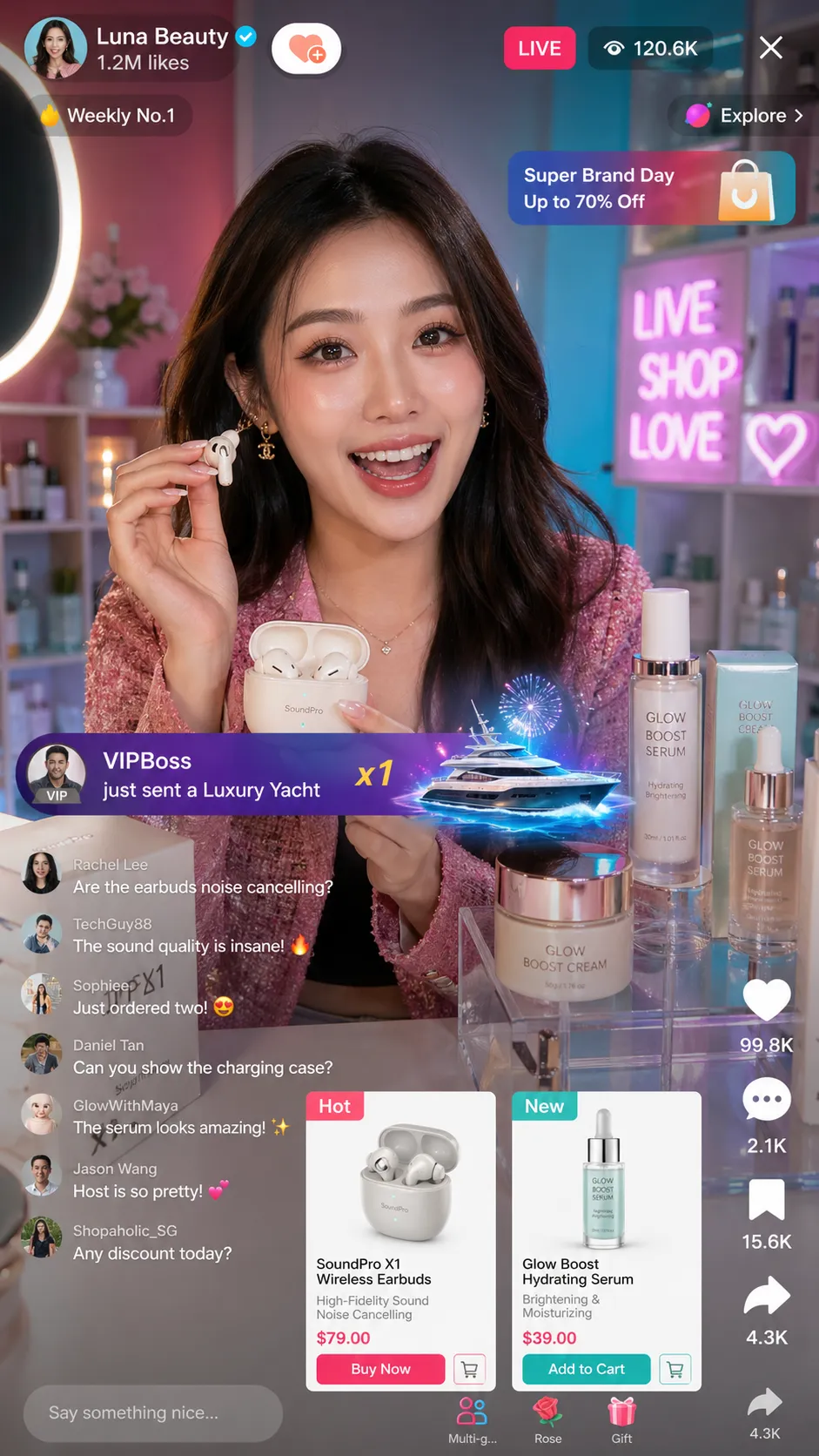
Generate a realistic TikTok live-stream screenshot. A charismatic female host is selling premium wireless earbuds and skincare. Live viewer count 120k+, likes 99k+, a top gifter named “VIPBoss” just sent a luxury yacht gift. Show chat messages, product cards, and vibrant energy.
2. Website UI Design
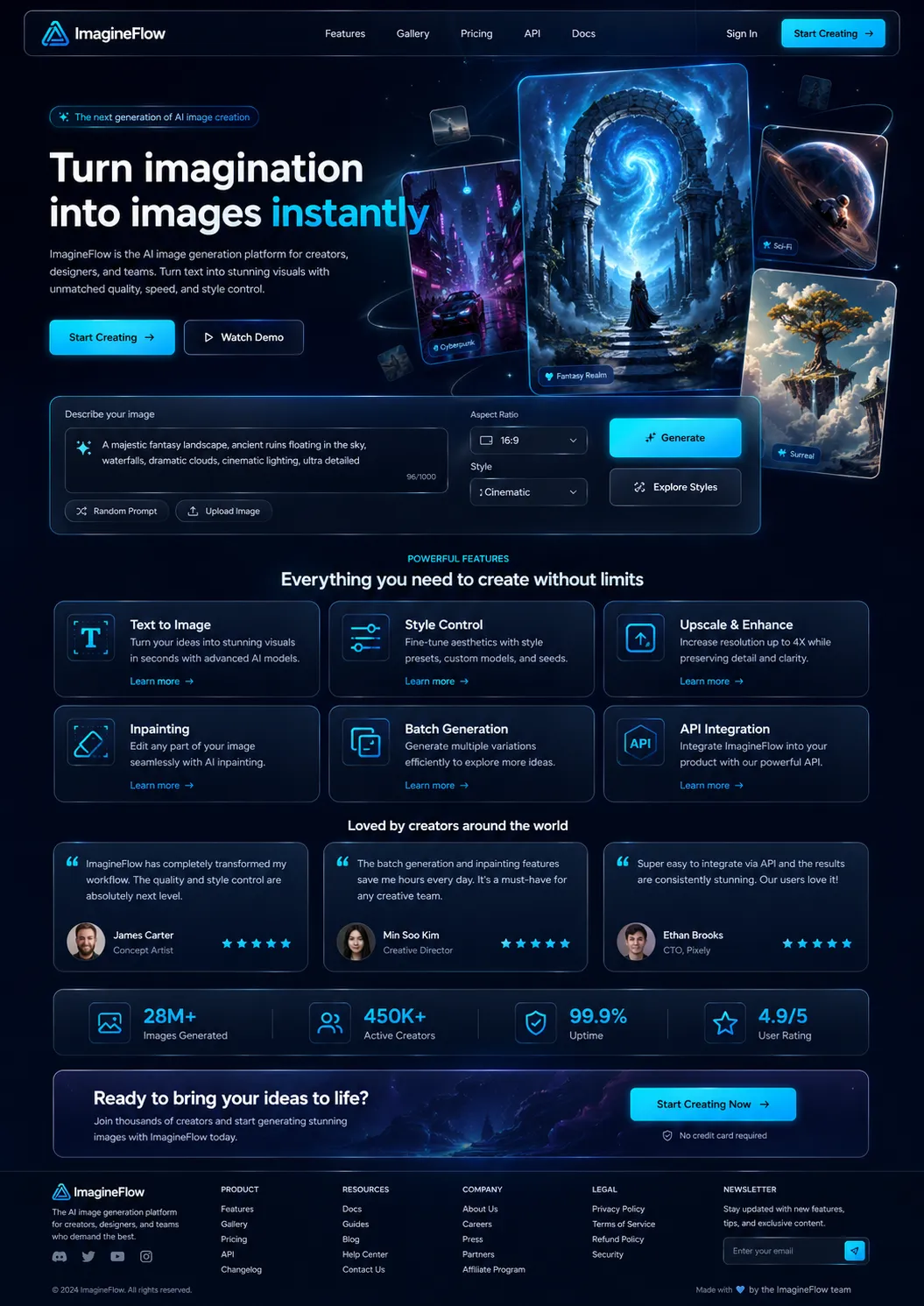
Design a modern, dark-mode homepage UI for an AI image generation tool called “ImagineFlow”. Hero section with dramatic generated artwork, clean navigation, feature grid, testimonials, and clear CTA buttons. Use Inter font, deep navy and electric cyan accents, glassmorphism cards.
3. Technical Infographic
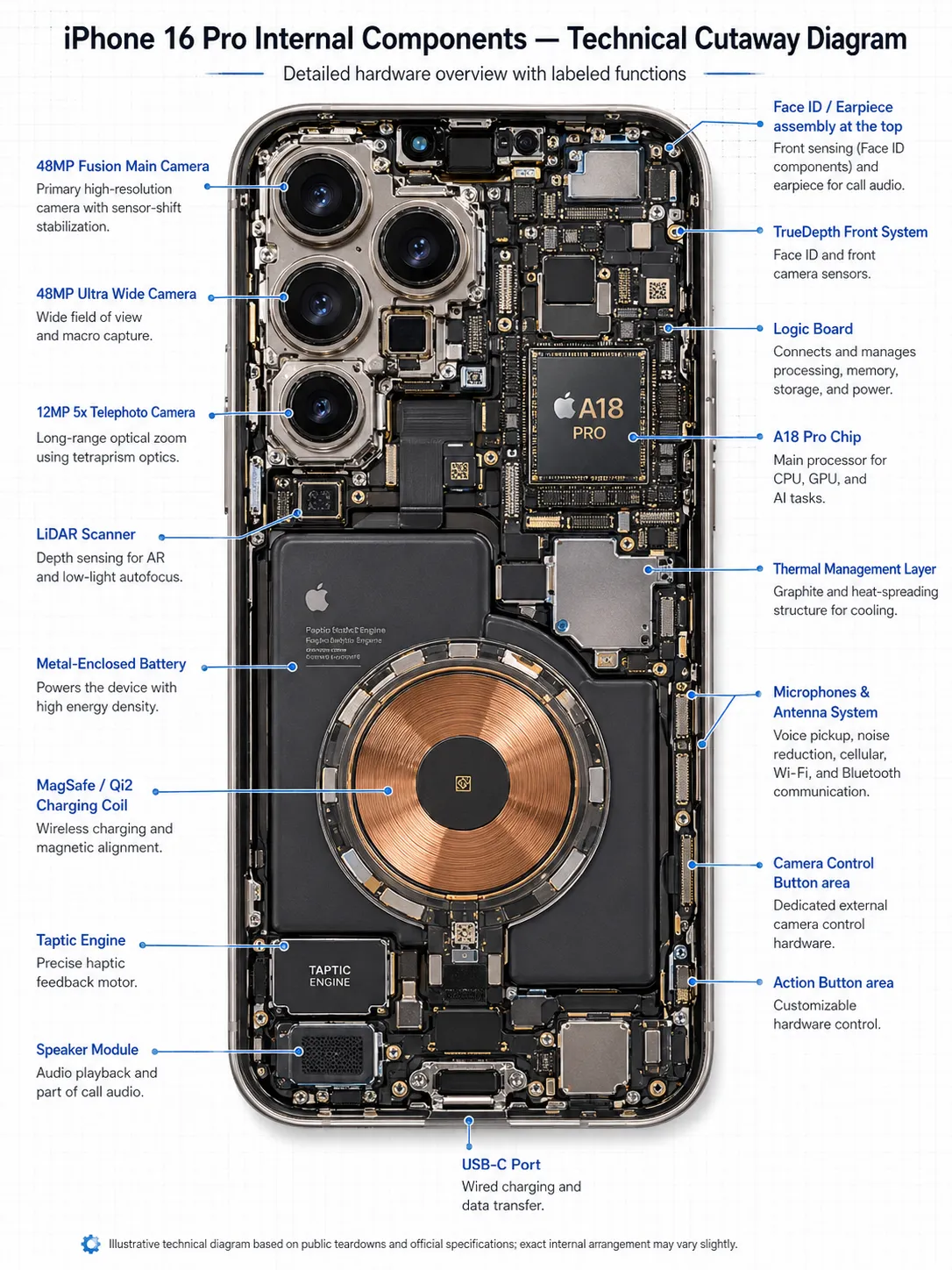
Create a detailed cutaway diagram of the iPhone 16 Pro showing internal components. Label every part in clear English with function descriptions and arrows. Professional technical illustration style, high detail, clean layout, white background with subtle grid.
4. Nostalgic Scene
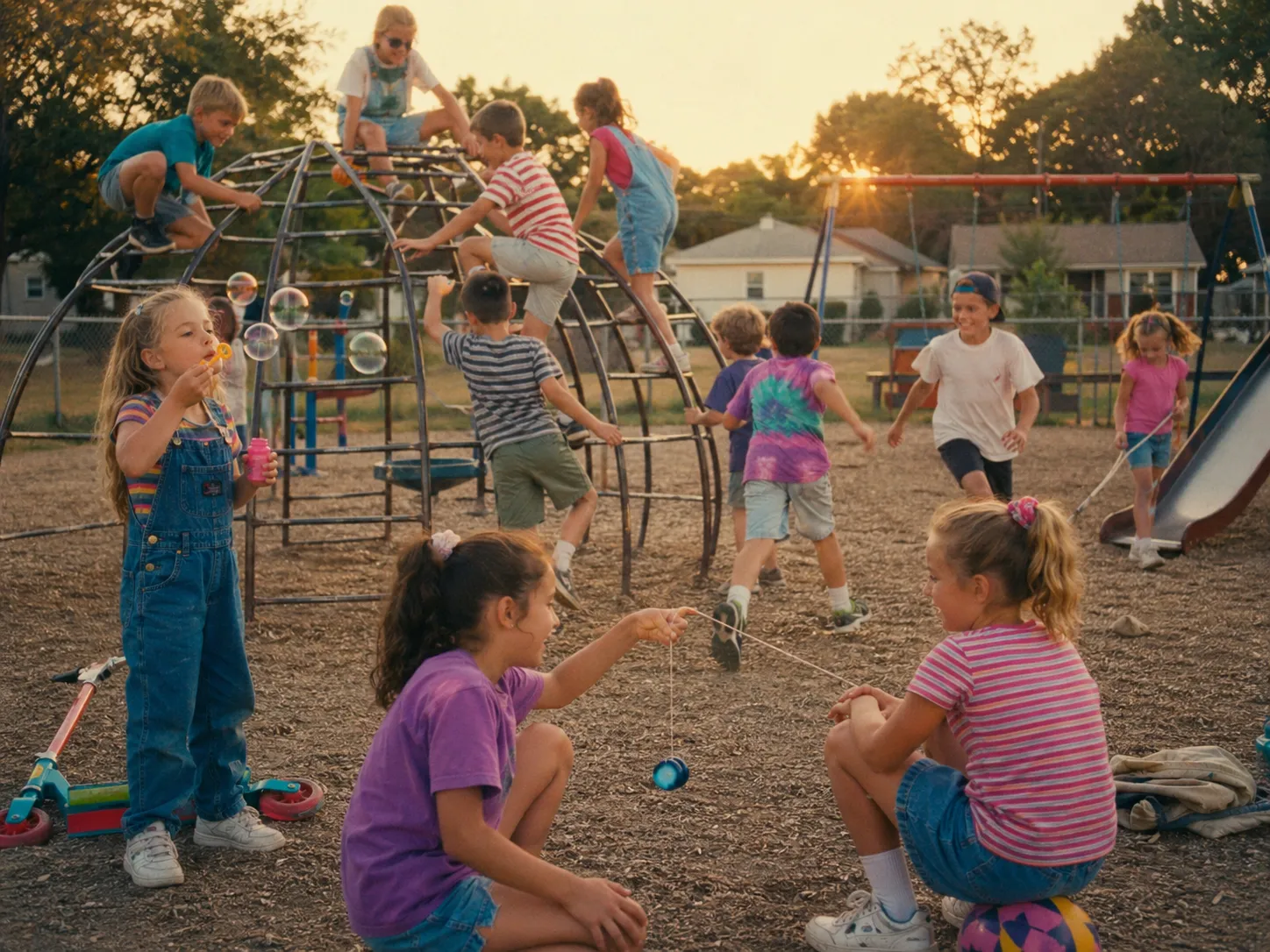
Generate a warm, nostalgic U.S 1999s childhood playground scene at golden hour. Kids playing together, retro toys, old-school jungle gym, slightly faded film look, emotional and heartwarming atmosphere that brings back memories.
Advanced Workflow: Generate a low-detail version first to confirm composition, then say “Upgrade to 4K ultra-detailed version with enhanced lighting, textures, and realism.”
5. GPT Image 2 vs Grok Imagine vs Gemini (2026 Real-World Comparison)
Use this entry to try GPT Image 2 with free-access options for daily generation and testing.
If you prefer Gemini’s photoreal style, use this entry to explore currently available free options.
If you want faster generation and creative exploration, use this entry to try Grok Imagine for free.
| Dimension | GPT Image 2 | Grok Imagine | Gemini (Nano Banana) | Winner |
|---|---|---|---|---|
| Text Rendering | 99%+, best for English & complex | Average, complex text fails | Good, occasional non-English issues | GPT Image 2 |
| Prompt Adherence | Extremely strong | Strong, more creative freedom | Excellent, very fast | GPT Image 2 |
| Photorealism | Natural & professional | Fast but lighter details | Top-tier photo realism | Gemini (slight edge) |
| UI / Layouts | Handles 100+ elements effortlessly | Average | Strong but text weaker | GPT Image 2 |
| Editing | Best multi-turn & precise control | Good but less stable | Excellent consistency | GPT Image 2 |
| Speed | Medium (Thinking mode slower) | Fastest (2–3s) | Very fast (3–5s) | Grok / Gemini |
| Free Quota | Limited but sufficient for daily | None | ~10–20 images daily | Depends on platform |
| Best For | Text-heavy posters, UI, commercial assets | Fast creative ideation | Photoreal people & environments | - |
Recommendation
- Choose GPT Image 2 when you need perfect text, professional UI/mockups, marketing materials, or menus.
- Grok Imagine for speed and wild creative brainstorming.
- Gemini for hyper-realistic photos and strong style consistency.
6. Final Thoughts
GPT Image 2 is currently the undisputed king of text and layout in AI image generation. With almost zero learning curve and solid free access, it’s never been easier to create commercial-grade visuals. Head over to ChatGPT right now and test the templates above — many designs that used to be “impossible” are now just a good prompt away.