
Free Merge Images into One (Vertical, Side-by-Side, Grid)
Need to merge images into one for a school submission, lab report, or presentation slide? This free tool lets you stitch screenshots vertically, join images side-by-side, or arrange them into a clean grid. Reorder images by dragging, adjust spacing and background, then download in the format you need. Everything runs 100% in your browser, so your files stay on your device.
Drag and drop images here or click to upload
2-9 images, max 10MB per image. JPEG, PNG, WebP supported
What is an Image Merger?
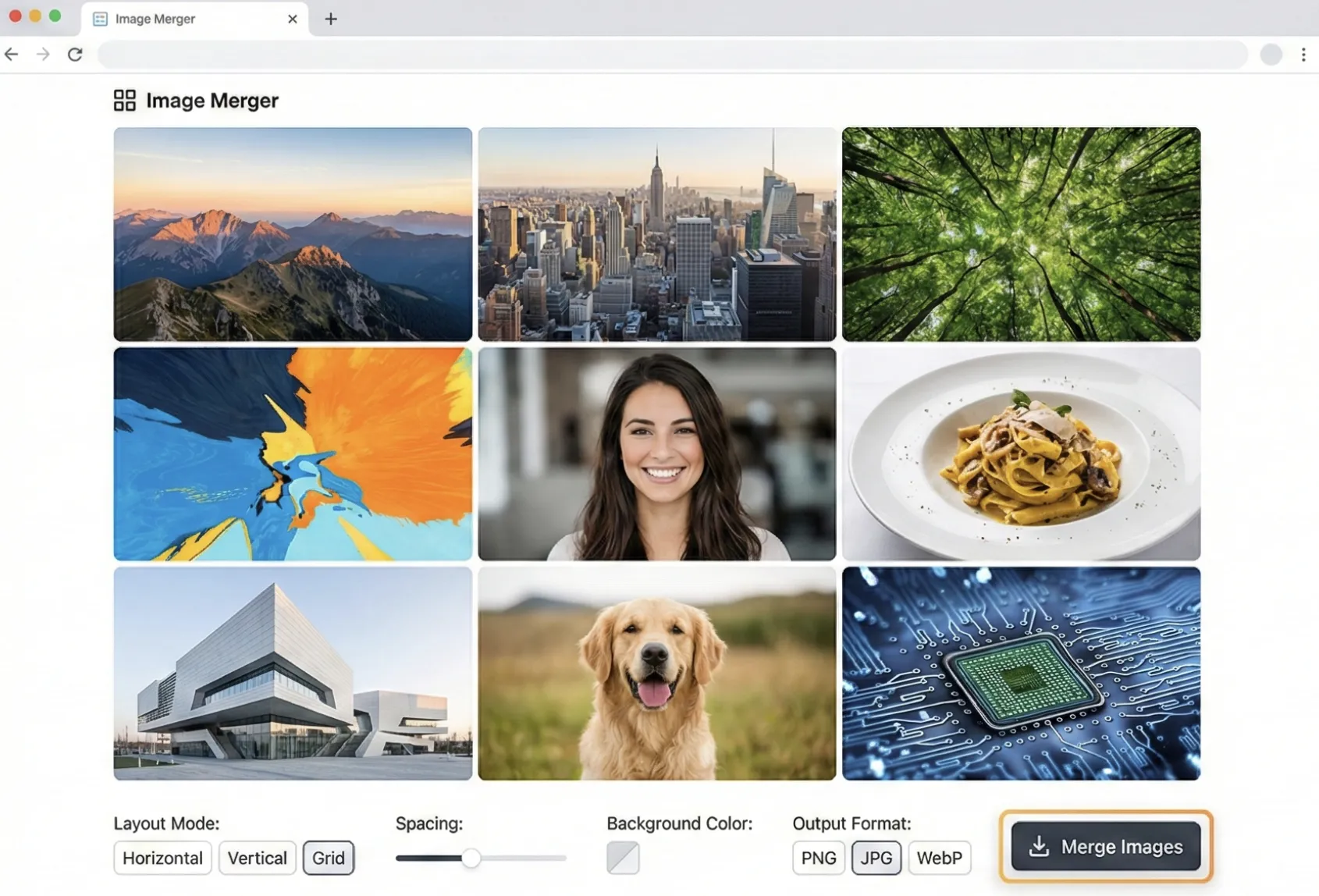
An image merger is a free tool to merge images into one output. Upload 2–9 images, choose a layout (vertical stitch, side-by-side, or flexible grid), then customize spacing, background color, and export format (PNG/JPG/WebP). Everything runs 100% in your browser, so your images stay private on your device.
Why Choose This Free Image Merger?
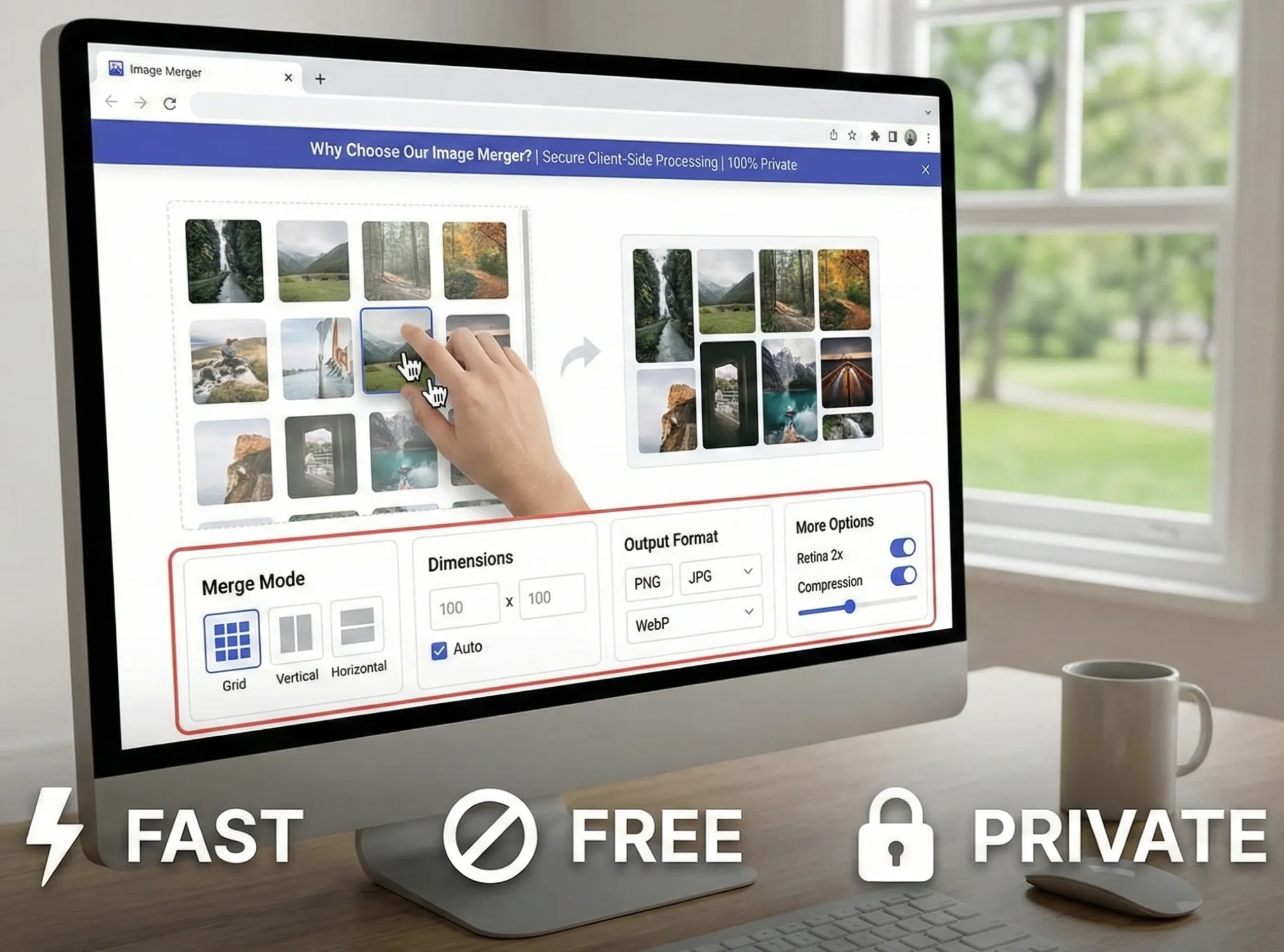
Merge up to 9 images into one with a clean vertical stitch, side-by-side layout, or flexible grid. Everything runs 100% in your browser, so your images stay on your device. Drag to reorder with instant preview, then fine-tune spacing, background, and export format (PNG/JPG/WebP). Optional Retina 2x and compression help keep slides sharp or meet upload size limits—fast, free, and private.
Need to Merge Multiple Images for Classwork?
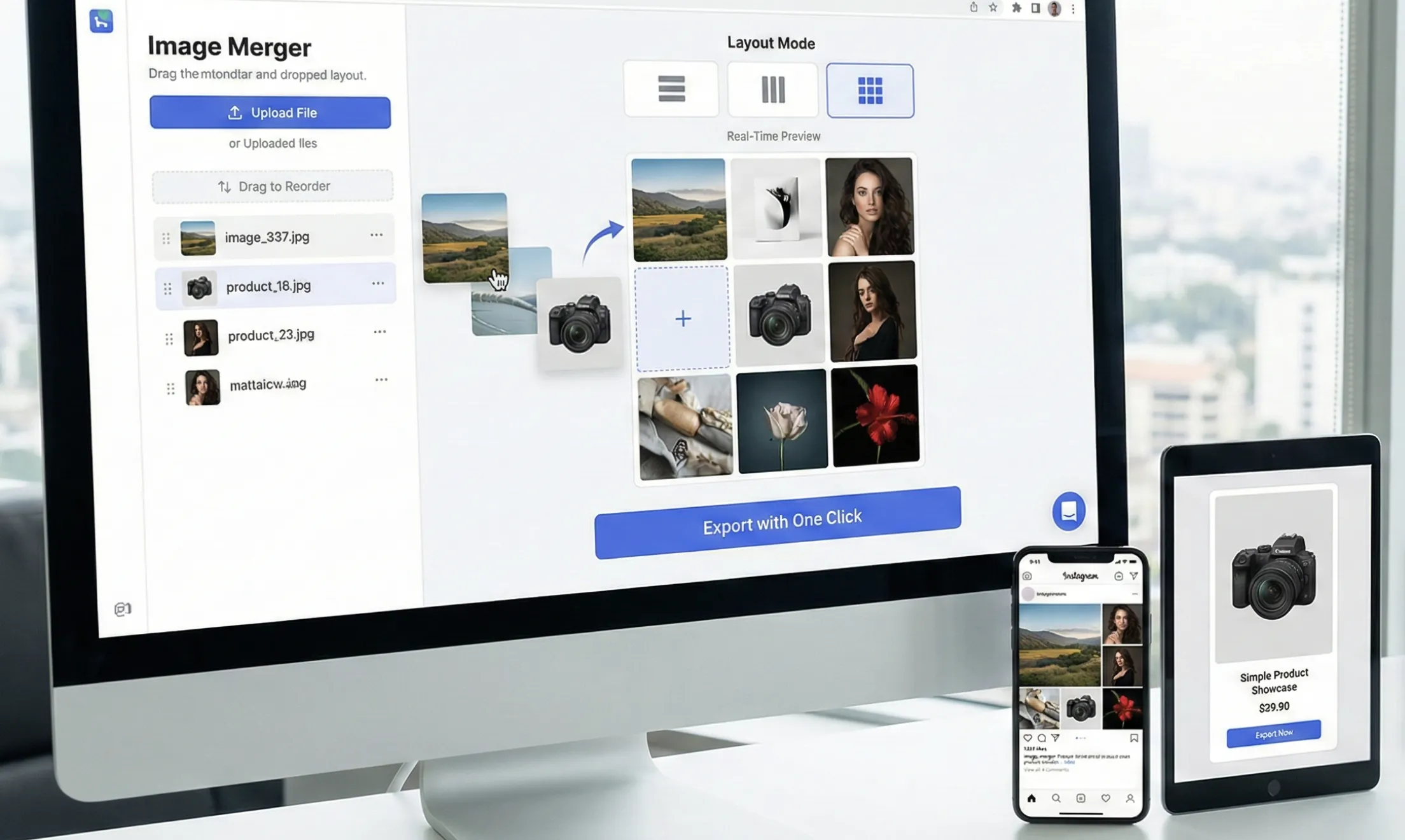
Assignments, lab reports, and slides often require combining multiple screenshots, diagrams, or photos into one clean image. Manual editing is slow and messy. Use this free image merger to merge images into one: pick a layout (vertical, side-by-side, or grid), upload up to 9 images, drag to reorder, preview instantly, and export in one click. Everything runs 100% in your browser, so your files stay private.
How to Use This Image Merger
Three steps with our image merger: upload, set options, download.
Upload Images
Drag and drop or click to upload 2-9 images into the image merger. Supports JPEG, PNG, WebP, max 10MB per image.
Set Parameters
In the image merger, choose Merge Mode (horizontal/vertical/grid), set dimensions, spacing, background color, and output format (PNG/JPG/WebP), then use More Options for Retina 2x or compression if needed. Drag images to reorder.
Download Result
Click Merge Images, preview, then download. This image merger runs entirely in your browser—no server upload.
Image Merger Features
Up to 9 Images
Merge 2–9 images into a single output, perfect for screenshots, diagrams, and step-by-step coursework.
3 Layout Modes
Choose Vertical (stitch), Side-by-side, or Grid layouts to match assignments, reports, and slides.
100% Private (In-Browser)
Everything runs client-side. Your images stay on your device and are not uploaded to a server.
Instant Preview
See results in real time, drag to reorder, adjust spacing/background, and export in seconds.
Free, No Sign-Up
Completely free to use with no registration or account required.
Use Cases (Student & Education)
Ways students and educators use the image merger for assignments, notes, and presentations.
Combine screenshots for assignment submission
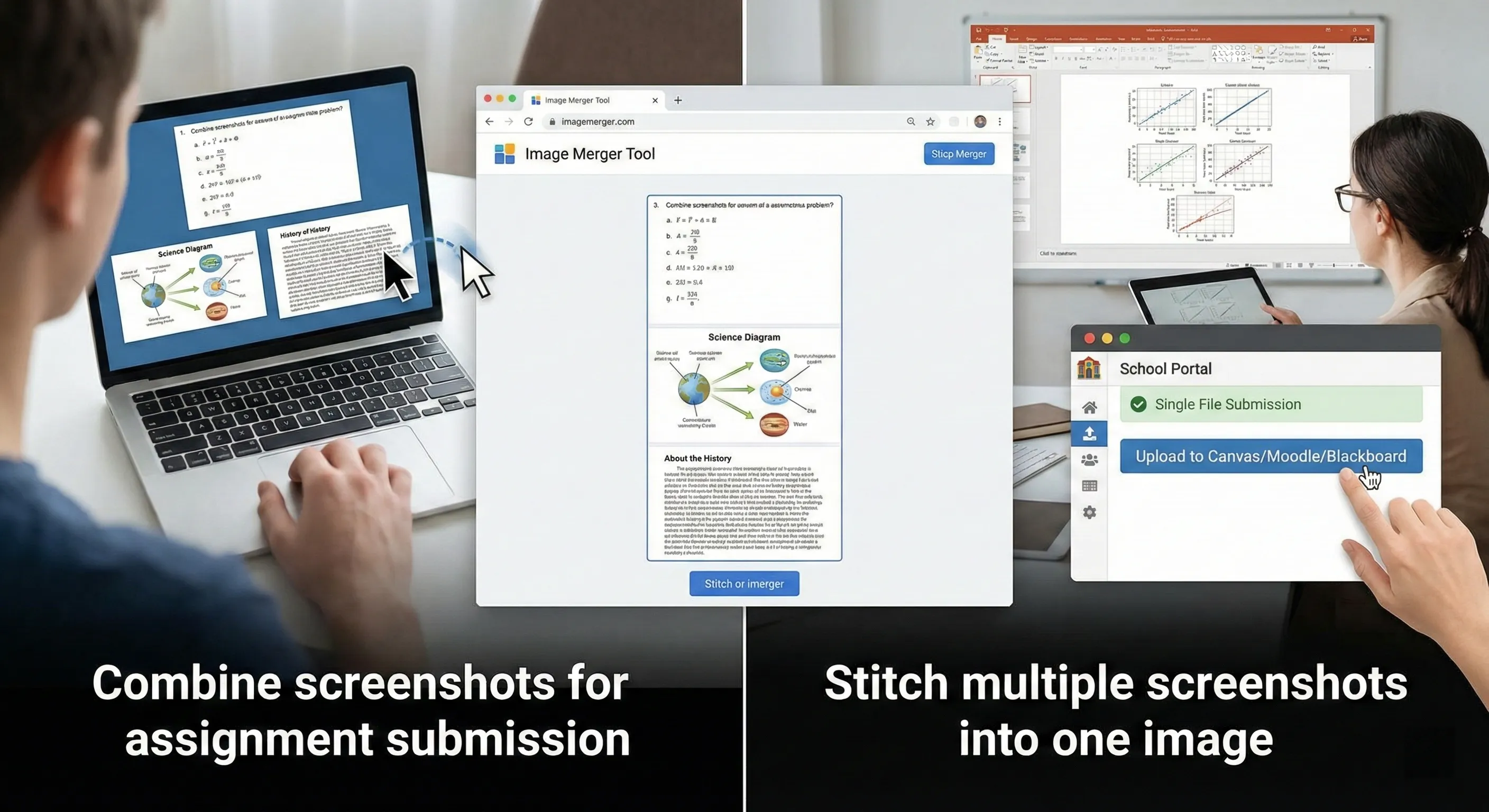
Stitch multiple screenshots into one image so you can upload a single file to Canvas/Moodle/Blackboard. Recommended: Vertical layout, spacing 0–8px, PNG for text clarity; enable Retina 2x if the LMS allows larger files.
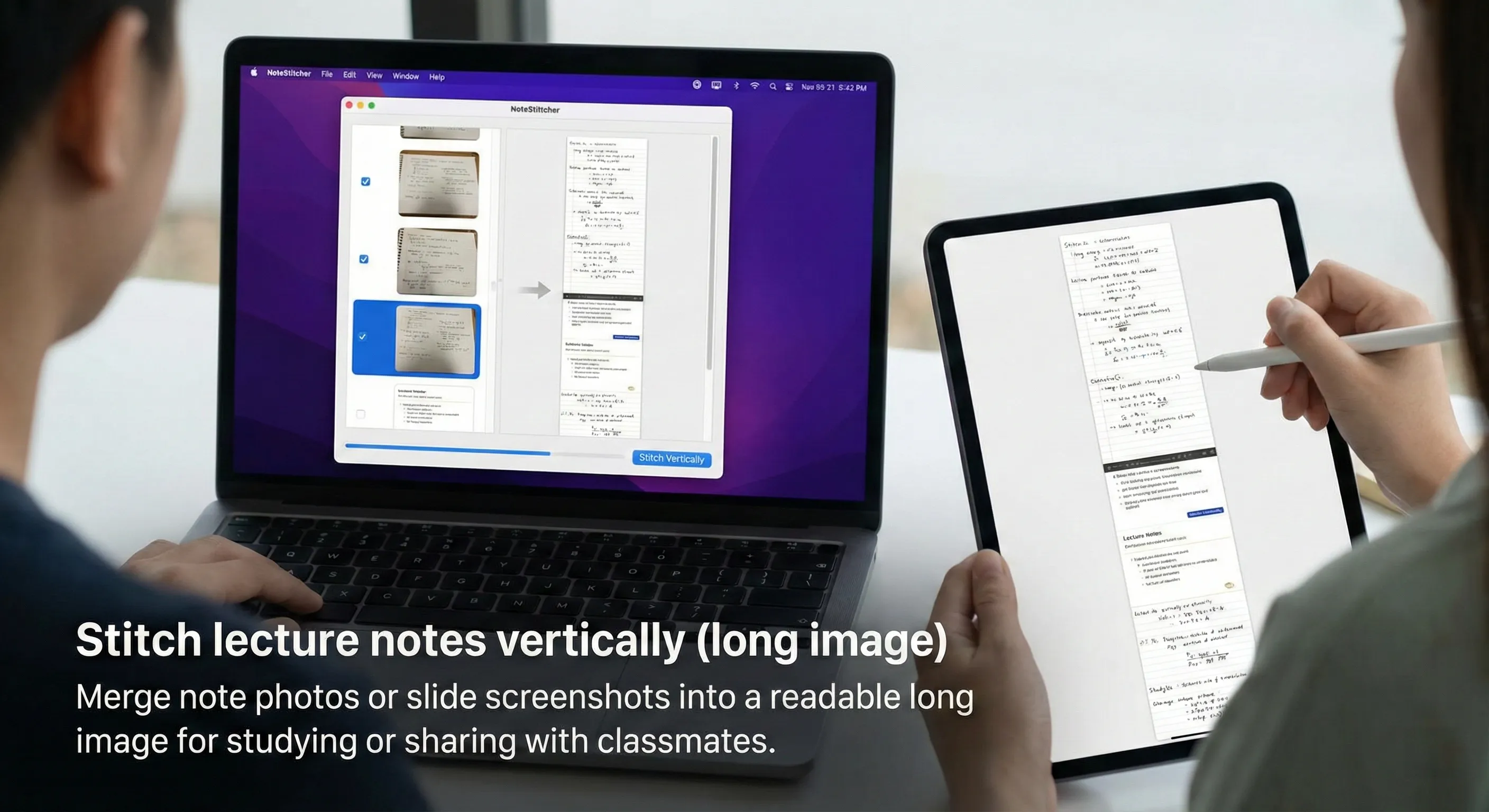
Stitch lecture notes vertically (long image)
Merge note photos or slide screenshots into a readable long image for studying or sharing with classmates. Recommended: Vertical mode, spacing 4–8px; use Retina 2x if labels or handwriting need to stay sharp.
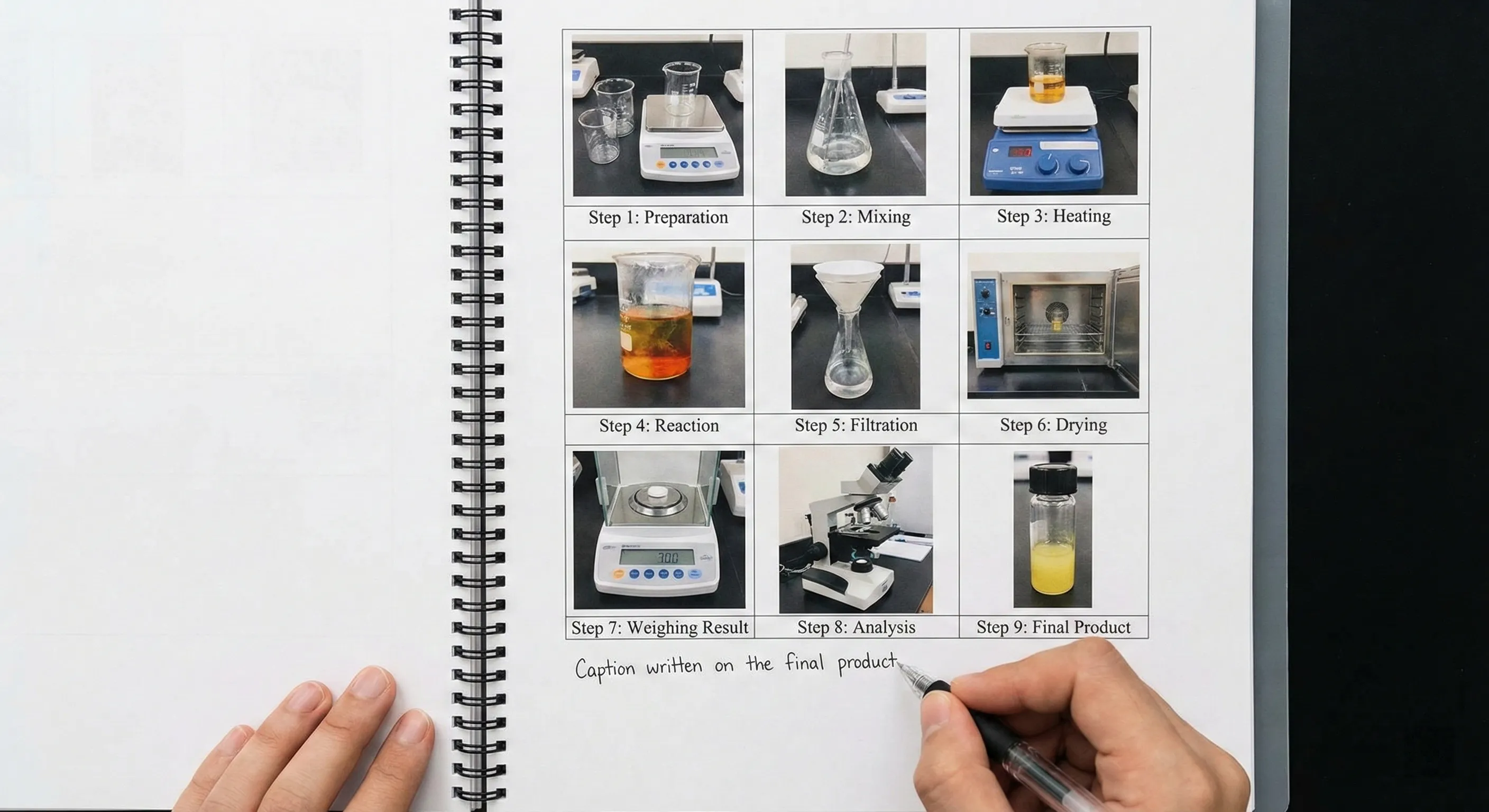
Lab report steps in a grid (up to 9 images)
Create a clean 2×2, 3×2, or 3×3 grid to show experiment steps, results, or process photos on one page. Recommended: Grid mode, Keep full image (no crop), uniform cell size; light compression or PNG for thin lines and labels.
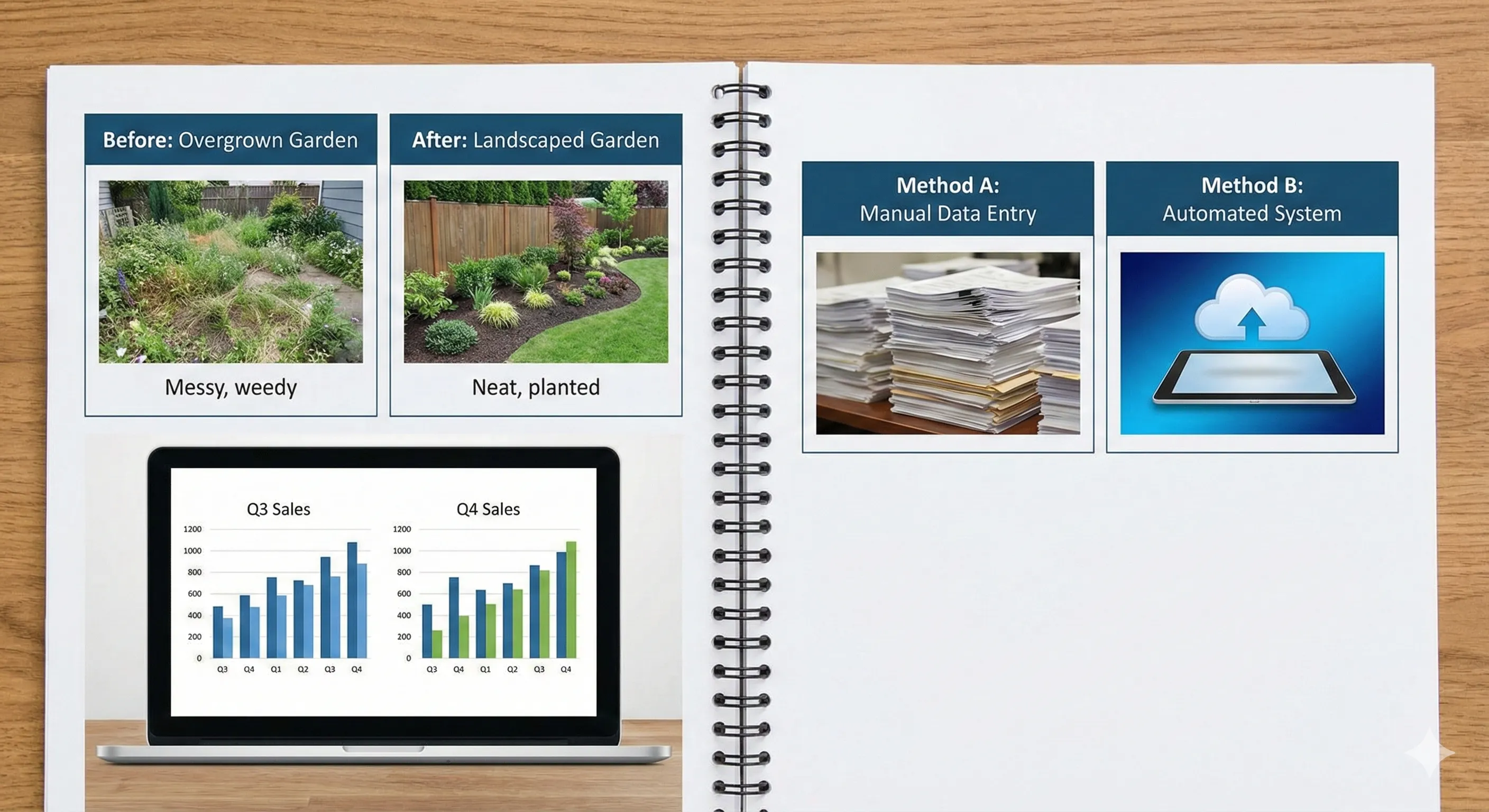
Side-by-side comparisons for reports
Place two images next to each other for before/after comparisons, chart comparisons, or "method A vs method B" visuals. Recommended: Horizontal layout, same height per image, add spacing (e.g. 12–24px) for a clear divide.
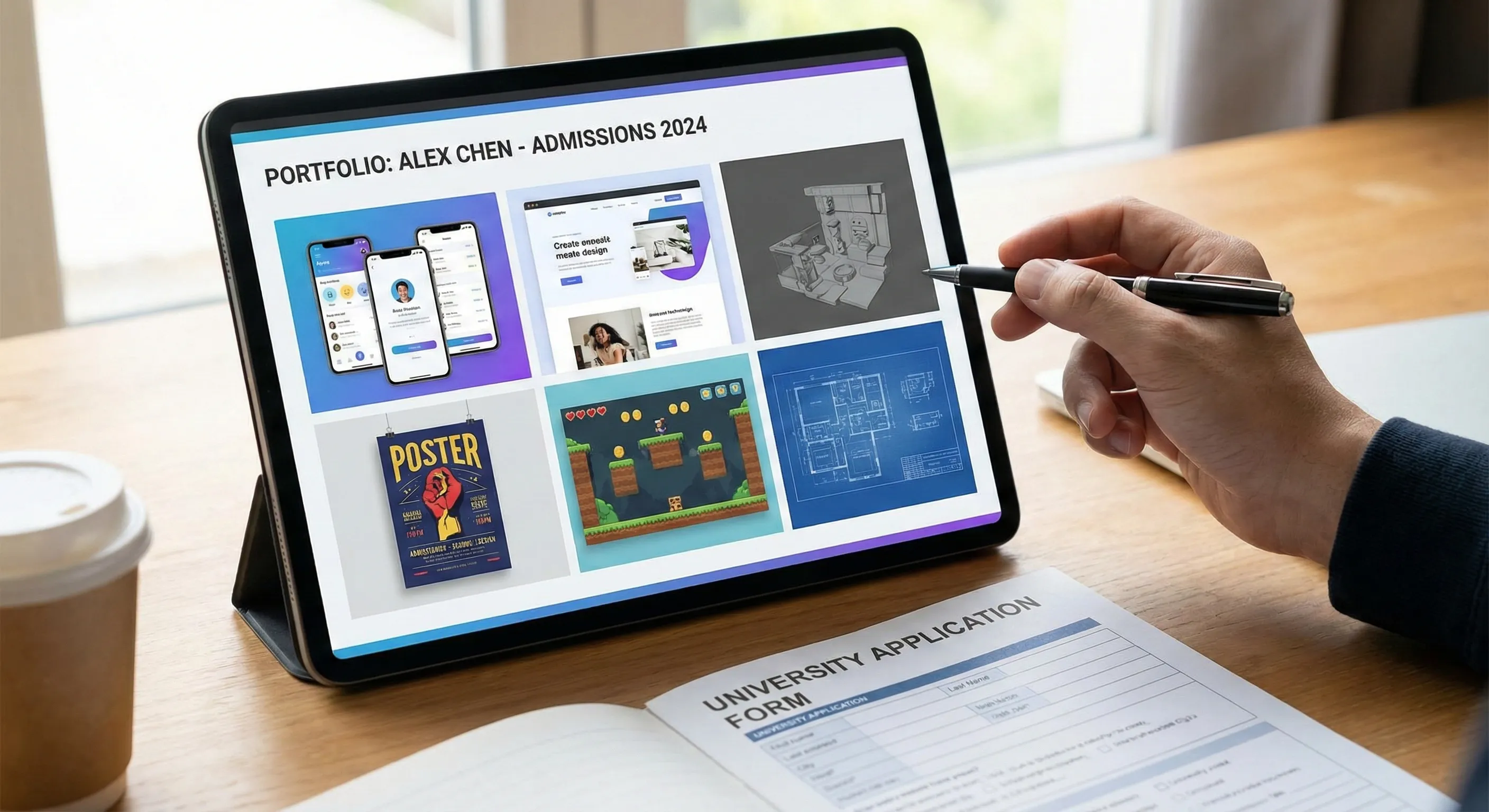
Portfolio or application image layout
Arrange project screenshots into a grid so admissions or scholarship reviewers can scan your work quickly. Recommended: Grid with uniform tile size (e.g. 800×800 or 1200×1200 per cell), or Vertical with same width for a consistent strip.
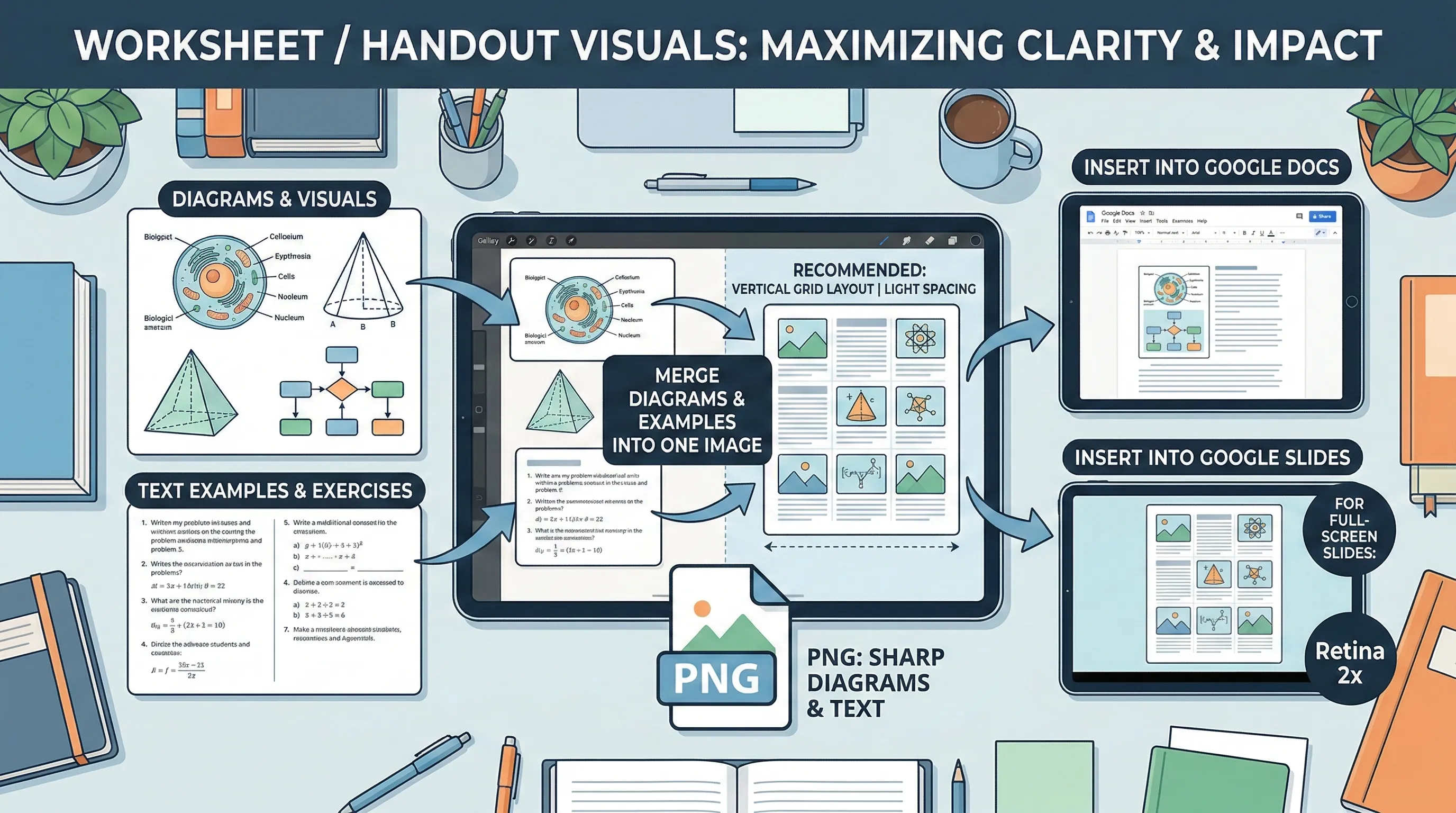
Worksheet / handout visuals
Merge diagrams and examples into one image before inserting into Google Docs or slides for class materials. Recommended: Vertical or grid, light spacing; PNG to keep diagrams and text sharp; Retina 2x if exporting for full-screen slides.
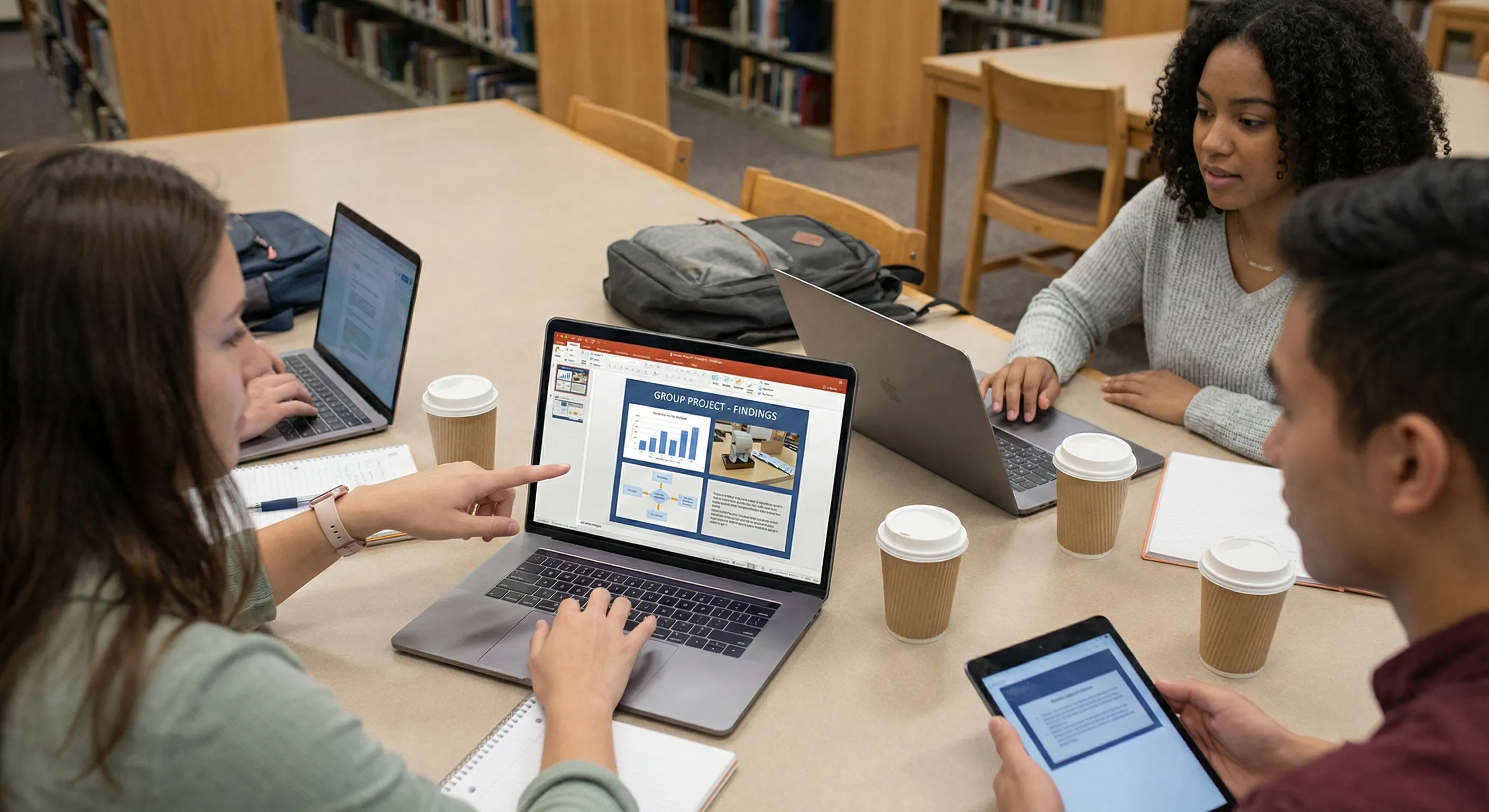
Group project slide building
Combine teammates' screenshots into one image so a slide deck stays consistent and easy to format. Recommended: Grid or horizontal layout, consistent spacing; set width to ~1920px or enable Retina 2x for crisp projection.
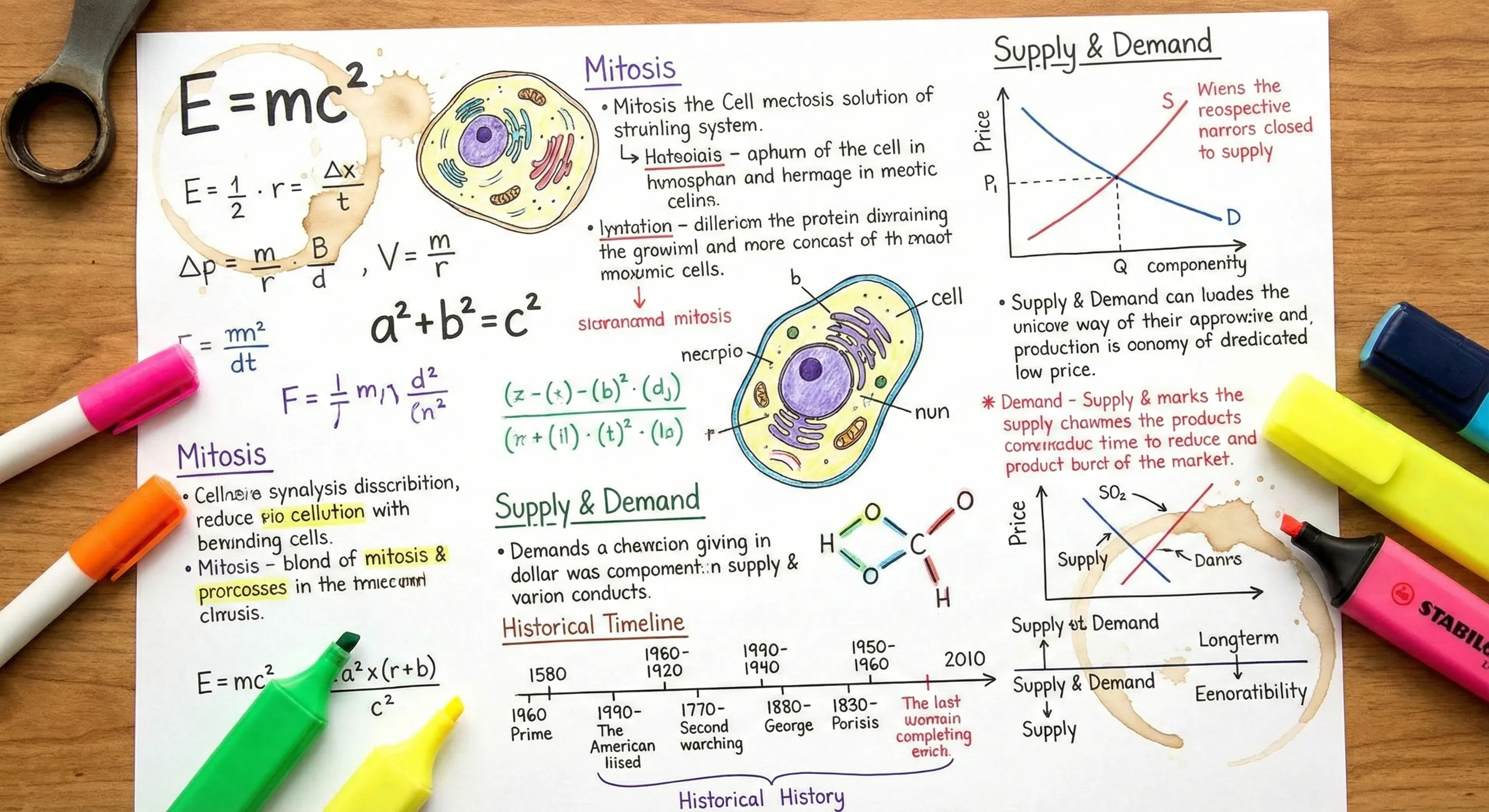
Study summaries and cheat sheets
Merge key formulas, definitions, and diagrams into one "quick review" image for exam prep. Recommended: Vertical long image or 2×2 grid, small spacing (4–8px), PNG to keep fine text readable; avoid heavy compression.
Start Merging Images
Upload your images, choose a layout mode, merge with one click.